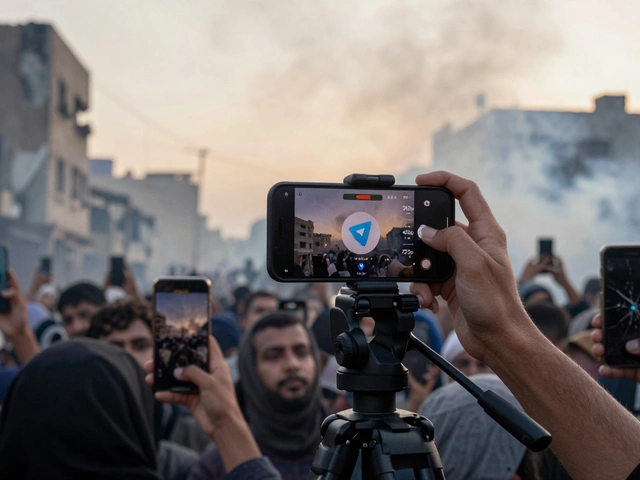
In the world of investigative journalism, a single leaked message can destroy a career or endanger a life. You might think your digital communications are secure behind an encrypted app, but standard sharing options often bypass those safeguards. When you forward a chat in Telegram is a cloud-based instant messaging platform known for its large group capabilities and media handling features. Since its rise in popularity among journalists, it has become a double-edged sword for source safety., anyone who receives a message can theoretically pass it along without your knowledge. That gap in control is where serious risks emerge for reporters working with sensitive information.
Understanding Content Protection Features
The platform introduced specific tools designed to close those gaps. Back in December 2021, the developers released an update focused on creator rights and audience control. Before that time, once content left your channel, the internet was wide open for redistribution. Now, the content protection support update allows administrators to lock down exactly how information moves through their network.
This isn't just about stopping spam. For a newsroom, it's about controlling the narrative flow. If a whistleblower sends documents to a dedicated Channel a broadcast account on Telegram that can have unlimited subscribers, they expect that material stays within the intended readership. The core feature here is the ability to restrict saving. When enabled, this setting prevents users from copying text, downloading media files, or forwarding posts to other groups. It essentially treats every post like a live event rather than a downloadable asset.
Consider the workflow of a typical investigation team. A source shares proof of misconduct. Without restrictions, a subscriber could screenshot, download, and repost that image to a rival server hours later, potentially outing the source in the metadata or context. By restricting saving, you force the content to remain viewable only within the protected environment. While determined actors find workarounds, this layer stops casual leaks and mass data scraping instantly.
Enabling Restrictions for Groups and Channels
Setting up these barriers requires administrative access. As the owner of a news channel, you hold the keys to this vault. Navigating to your Group or Channel Info page reveals the necessary configuration menu. Look specifically for the settings labeled regarding group type or permissions. There, you will find the toggle for Restrict Saving Content.
- Open your channel settings via the profile icon.
- Select "Edit" or "Settings" depending on your device interface.
- Scroll to the privacy or admin management section.
- Activate the option that limits saving or forwarding.
Once switched on, the visual cue appears in the interface. Users inside the channel cannot click the arrow icon to share messages elsewhere. This creates a boundary between the public sphere and your private intelligence feed. It signals to your audience that the trust placed in them must be respected.
However, you need to understand the mechanics of how this interacts with operating systems. On Android devices, security policies block screen capturing attempts in these protected chats entirely. The screen goes black. But on desktop clients and iOS devices, the situation is different. Those platforms do not always enforce the same strict blocking mechanisms, meaning a quick photo with another phone can still capture what you posted. Knowing this distinction is vital for assessing risk levels.
Personal Privacy Settings for Reporters
Beyond organizational channels, individual journalists need personal shields. Your own account settings determine how your direct messages behave when others try to handle them. In the global privacy menu, there is a specific section controlling forwarded message attribution. This allows you to decide who can see your original link when they share your text.
| Setting Option | Functionality | Risk Level |
|---|---|---|
| Everybody | Default setting; forwards link back to profile | High |
| My Contacts | Limits visibility to saved phone contacts only | Moderate |
| Nobody | Hides origin; displays name as plain text | Low |
Choosing the Nobody option effectively severs the digital trail. If someone forwards your message, it arrives as unlinked text. They see your display name, but clicking it takes them nowhere. This mimics face-to-face conversation where a tape recorder captures words, but the person speaking remains distinct from the transcript. For undercover reporting or confidential tip lines, this is non-negotiable. It ensures that even if a conversation is exposed, the digital architecture doesn't provide a breadcrumb leading back to the reporter's personal hub.
Automation Tools and Bot Monitoring
Manual enforcement only goes so far. Large news organizations rely on specialized Telegram bots to maintain order. These automated agents patrol groups and scan for rule violations in real-time. You can configure them to detect when a user attempts to forward restricted content.
When a violation occurs, the bot springs into action. It deletes the unauthorized post immediately and issues a warning to the perpetrator. Repeated offenses trigger stricter consequences, such as muting the user or removing them from the group entirely. This reduces the administrative burden on editors and creates consistent deterrence. It acts as a digital bouncer at the door of your newsroom ecosystem.
These bots also help manage the volume of incoming leads. If you run a tip line, you don't want those tips accidentally forwarded to public forums. An anti-forwarding bot ensures the integrity of the intake process. However, remember that software is not infallible. Custom third-party clients sometimes bypass standard client restrictions. You must remain vigilant about the tools your team uses alongside official applications.

Navigating Real-World Limitations
No digital lock is perfect. Even with Telegram Premium features and advanced settings, human behavior remains the variable. A recipient can simply point their phone camera at a screen. They can dictate text aloud to another device. These analog breaches bypass software restrictions.
Your strategy must account for the worst-case scenario. Assume that any information you send digitally could eventually become public. The protections available are primarily deterrents for average users, not encryption against state-level adversaries. For highly classified source materials, relying solely on app settings is insufficient. Combine these digital measures with operational security practices.
Verify identities offline before moving sensitive discussions online. Use multi-layered communication methods where possible. Understand that while Snapchat and Signal offer end-to-end encryption by default in all chats, Telegram's cloud-based model prioritizes accessibility over absolute anonymity unless secret chats are used. Always clarify with your source which level of security they actually require.
Best Practices for Newsrooms
To get the most out of these policies, integrate them into your editorial guidelines. Training matters. New interns might leave channels open because they don't understand why the toggle exists. Create a checklist for onboarding that covers permission structures.
Regularly audit your channel settings. Permissions drift over time as staff changes roles. A former editor might retain admin access to a legacy channel. Review the subscriber base periodically to remove inactive accounts that might pose security risks. Finally, document your protocols. If a leak happens, having a record of your protective measures demonstrates due diligence and protects the organization legally.
Does turning on restriction prevent screenshots?
It blocks system-native screenshots on Android devices due to security policies. However, iOS and Desktop versions may still allow screenshots, so physical security of devices remains important.
Can admins track who forwarded a message?
When using the "Restrict Saving Content" feature, direct forwarding is disabled, making tracking irrelevant. For regular chats, admins generally cannot track individual message routing unless specialized bots are deployed to monitor logs.
Is this feature available for free accounts?
Yes, content restriction settings are part of the standard group and channel creation tools and do not require a premium subscription to enable.
What happens if a user tries to forward anyway?
If restrictions are active, the forward button is hidden or greyed out. Attempts to copy-paste text often result in blank input fields, preventing content duplication.
Do these settings apply to old messages?
No, protection applies to messages sent after the setting is enabled. Historical content remains subject to previous permissions unless deleted and re-uploaded.
Latest Posts