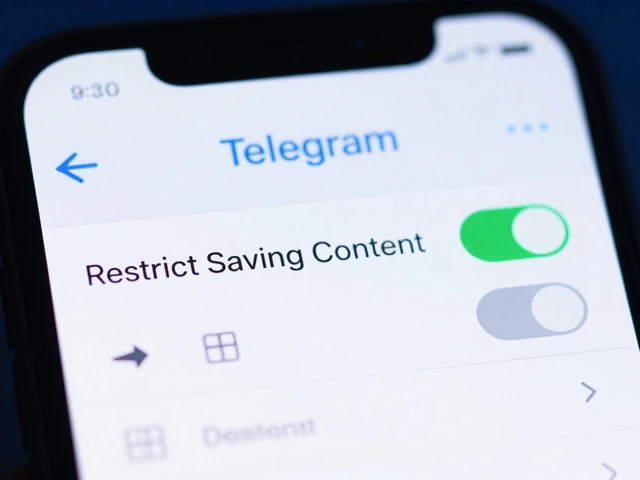
Imagine your subscribers scrolling through a cluttered inbox, deleting half your messages because they don't care about the content. Now imagine them tapping a simple button in a chat window to say, "Only send me product updates" or "I want VIP access." That is the power of a subscriber preference center. It turns passive readers into active participants who control their own experience.
In 2026, building these centers using Telegram Bot Menus is one of the most effective ways to manage user interaction options and deliver personalized content. You do not need complex coding skills to set this up. By leveraging the menu functionality built directly into the Telegram platform, you can let users customize their subscriptions right inside the chat interface. This guide shows you exactly how to build, configure, and optimize these systems for better engagement and higher conversion rates.
Why Telegram Bot Menus Beat Traditional Email Preferences
Traditional email preference centers often live on a separate landing page. Users have to click a link, wait for the page to load, log in, and then find the toggle switches. It creates friction. Many people just give up and unsubscribe entirely if they feel overwhelmed by notifications.
Telegram changes this dynamic completely. The app is already open on the user's phone. When you use BotFather, Telegram's official bot management service, you can create inline keyboards and command menus that appear instantly. These menus allow users to select content preferences and manage subscription settings without ever leaving the conversation thread. The result is faster response times and lower drop-off rates during the setup process.
The technical architecture relies on simple commands. Each menu option consists of a command (the technical identifier) and a menu title (the text the user sees). For example, a command might be `/vip_access` while the title displayed is "Join VIP Club." This separation allows you to keep the backend logic clean while presenting a friendly, intuitive interface to the user.
Setting Up Your First Menu Structure
To start building, you need to access the control panel for your bot configuration. Open Telegram and type the command `/mybots`. This displays a list of all bots owned by your account. Select the specific bot you want to edit from this list.
Navigate to the bot settings where you will find the "Edit Commands" function. This is the primary interface for building out menus that appear when users interact with the bot. Here is how you structure a basic preference center:
- Define Core Categories: Create first-level menu items like "Brand Overview," "Product Support," or "Promotions." These act as the main navigation hubs.
- Add Submenus: Under categories like Product Support, add second-level options such as "New Arrivals," "Active Promotions," or "Sizing Guide." This hierarchical structure guides customers to relevant information within seconds.
- Set Unique Identifiers: Ensure every command is unique across the entire bot menu structure. Duplicate commands cause errors and break the user flow.
Platforms like SendPulse simplify this process further. In their Bot settings > Menu interface, administrators simply click "Add item in Bot commands menu" to create new options. This visual approach makes it easier to see how the menu will look to the end user before publishing.
Implementing Dynamic User Segmentation
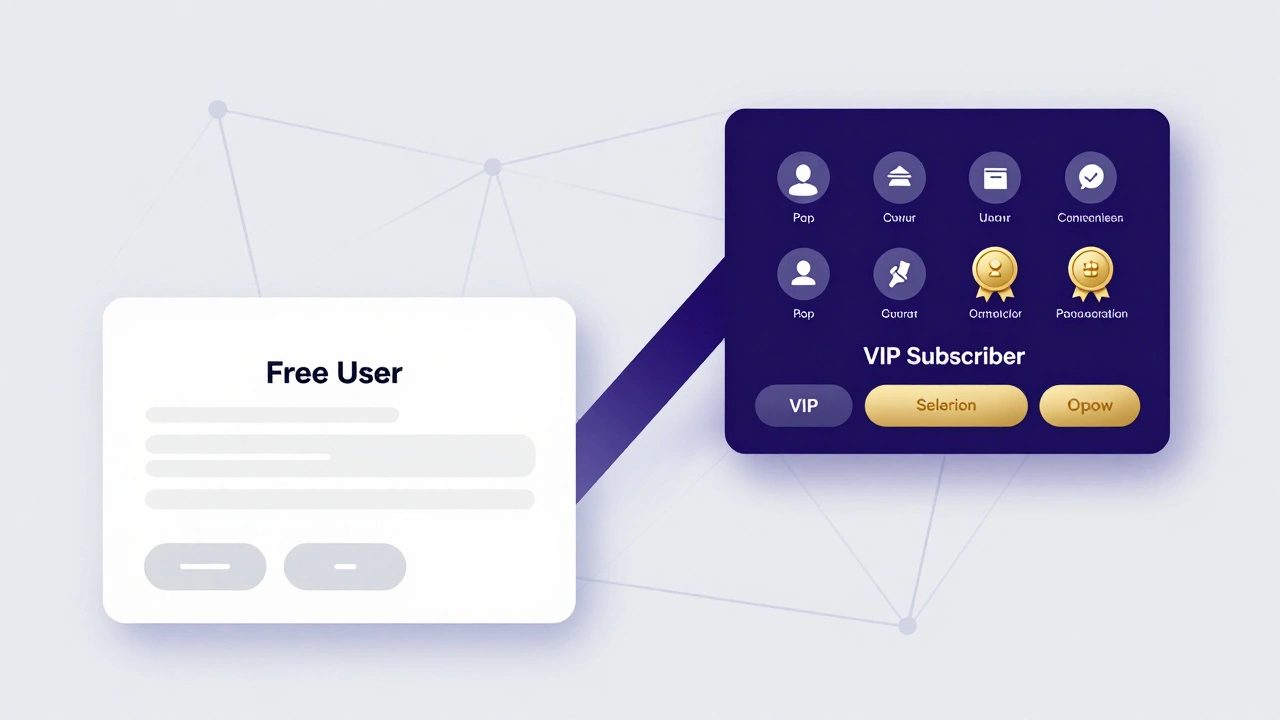
A static menu is useful, but a dynamic preference center is powerful. You want different users to see different options based on their status. For instance, a paying subscriber should see exclusive content links, while a free user might see upgrade prompts.
This requires integrating your bot with a system that handles user labels and sequences. Platforms like UChat implement this through a flows-based system. Administrators can create multiple distinct menus with different command structures. You might have a "Default Menu" for general users and a "VIP Menu" for premium subscribers.
Here is how the switching works in practice:
- Assign Labels: When a user completes an action (like making a payment), the system assigns a label, such as "Paid_Subscriber," to their profile.
- Trigger Menu Change: Using advanced actions in the workflow builder, you set a rule: "If user has label 'Paid_Subscriber', switch menu to 'VIP Menu'."
- Update Interface: The next time the user opens the bot, the available commands update automatically. They now see buttons for exclusive content instead of generic marketing links.
This dynamic switching reduces noise for high-value users and keeps them engaged with content that matches their investment level. It also allows you to test different menu configurations for different audience segments to see which drives more clicks.
Managing Subscriptions and Payments via Menus
Preference centers are not just about reading preferences; they are also transactional tools. You can integrate payment processing directly into the menu flow to manage paid subscriber access.
Systems like BotHelp demonstrate this by connecting a bot to a private channel. Subscribers access paid content only after payment. The setup involves copying templates, specifying domain settings, and configuring the bot steps.
A typical payment flow looks like this:
- Send Payment Link: The bot sends a button labeled "Unlock Premium Content." Tapping this opens a secure payment gateway.
- Verify Transaction: Once the payment is confirmed, the bot automatically adds the user to the private channel and assigns the "Subscriber" label.
- Handle Non-Payers: Configure delay messages for users who start the process but do not complete payment. A gentle reminder sent 24 hours later can recover lost sales.
You can customize the button text and block text to match your brand voice. For example, instead of "Pay Now," you might use "Get Instant Access." Small copy tweaks in the menu buttons can significantly impact conversion rates.
Advanced Automation with External Integrations
Your preference center does not have to live in isolation. You can link external content through integrations to make the bot a hub for all your media.
MiniBot and similar platforms enable administrators to configure custom commands where users receive predefined responses. You can integrate external links such as YouTube playlists or other social media channels. When users tap on a custom command like "Watch Our Latest Video," the bot returns a direct link to your YouTube playlist.
This syncs content across platforms. If you post a new video on YouTube, you update the command once, and every user who taps that menu button gets the fresh link. It saves time and ensures your bot always points to current content.
Additionally, you can use message sequences for multi-step communications. After a user selects a preference, the bot can trigger a sequence of three emails or messages over the next week, reinforcing their choice and providing value. This combines the immediacy of the bot menu with the nurturing power of automated drip campaigns.
Troubleshooting Common Menu Issues
Even with robust platforms, things can go wrong. Here are common pitfalls and how to fix them:
- Commands Not Showing: Check if you have saved the changes in BotFather. Sometimes the cache needs a refresh. Ask users to restart the bot by sending `/start` again.
- Wrong Menu Displayed: Verify your label assignments. If a user is seeing the VIP menu but hasn't paid, check your payment webhook integration to ensure the success signal is reaching the bot correctly.
- Broken Links: Regularly audit your external links. If a YouTube video is deleted or a product page moves, update the command parameters immediately to avoid dead ends.
Testing is crucial. Use the testing features in platforms like UChat or SendPulse to simulate user interactions. Click through every button, switch between menus, and verify that the correct responses and links appear. Treat your bot menu like a website-broken links hurt trust.
| Platform | Key Feature | Best For | Complexity Level |
|---|---|---|---|
| SendPulse | Visual Menu Builder | Marketers needing quick setup | Low |
| UChat | Flow-Based Logic | Dynamic segmentation & switching | Medium |
| BotHelp | Payment Integration | Selling digital products/subscriptions | High |
| MiniBot | Custom Command Sync | Linking external content libraries | Medium |
Measuring Success and Optimization
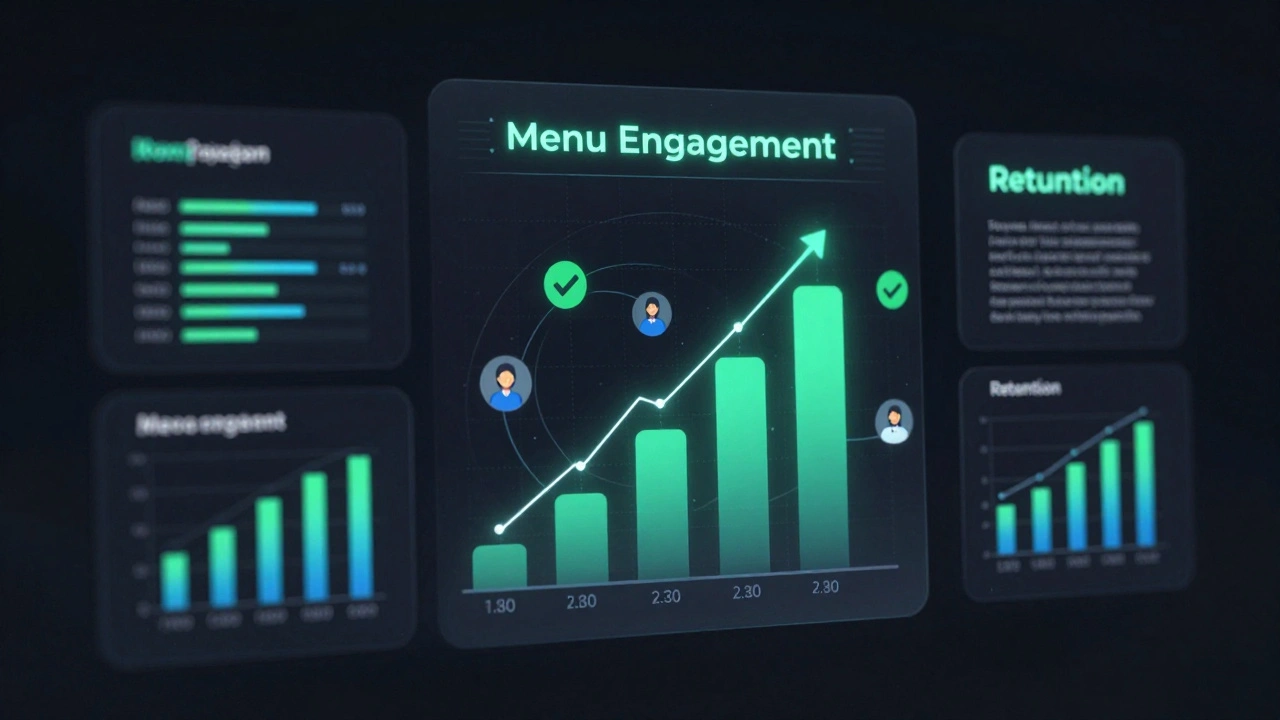
Once your preference center is live, you need to measure its impact. Look at two key metrics: menu engagement rate and preference change frequency.
Menu engagement rate tells you how many users are actually clicking the buttons versus just ignoring them. If this number is low, your menu titles might be unclear. Try changing "Update Settings" to "Change What I Receive." Clearer language drives more clicks.
Preference change frequency shows how often users modify their choices. High frequency indicates that users are actively managing their experience, which correlates with higher retention. Low frequency might mean the initial defaults were good, or that users don't know they can change settings. Add a periodic reminder message inviting users to review their preferences.
By continuously refining your menu structure and testing different layouts, you turn a simple bot feature into a powerful tool for customer satisfaction. You reduce support tickets because users find what they need themselves. You increase revenue because paying subscribers get the exclusive content they expect. And you build loyalty by giving users control over their communication experience.
How do I create a custom command in Telegram BotFather?
Open Telegram, type /mybots, select your bot, and choose "Edit Commands." Enter the command keyword (e.g., /help) followed by the description that appears in the menu (e.g., "Get help"). Save the changes to publish the command.
Can I show different menus to different users?
Yes, using platforms like UChat or SendPulse, you can assign labels to users based on their actions. Then, use workflow rules to switch the displayed menu dynamically. For example, VIP users see a different set of commands than free users.
Is it possible to process payments directly in the bot menu?
Yes, services like BotHelp allow you to integrate payment links into menu buttons. When a user taps the button, they are directed to a secure checkout. Upon successful payment, the bot automatically grants access to premium content or channels.
What happens if a user unsubscribes via the menu?
The bot removes the user from your mailing list or stops sending scheduled messages. Most platforms offer an "Unsubscribe" command that triggers this action immediately, ensuring compliance with user preferences.
Do I need coding skills to build a preference center?
No, most modern bot platforms provide visual builders. You can drag and drop elements, set conditions, and define menu items without writing code. However, basic knowledge of API tokens helps for advanced integrations.
How often should I update my bot menu?
Review your menu quarterly or whenever you launch new products or campaigns. Keep the structure consistent but update the content to reflect current offers and seasonal relevance.
Can I link YouTube videos in my bot menu?
Yes, using platforms like MiniBot, you can create custom commands that return direct links to YouTube playlists or specific videos. This keeps your content fresh without needing to rewrite the bot logic each time.