Telegram’s live streaming feature turned into a game-changer for news communities in 2025, and by early 2026, it’s the go-to tool for breaking news, on-the-ground reporting, and real-time community updates. Unlike traditional platforms that require third-party integrations or complex setups, Telegram lets you go live with just a few taps-no extra apps, no subscriptions, and no lag. If you’re running a news channel or group, hosting live coverage isn’t just useful-it’s becoming expected. Here’s exactly how to do it right, step by step.
Set Up Your Telegram Channel for Live Streaming
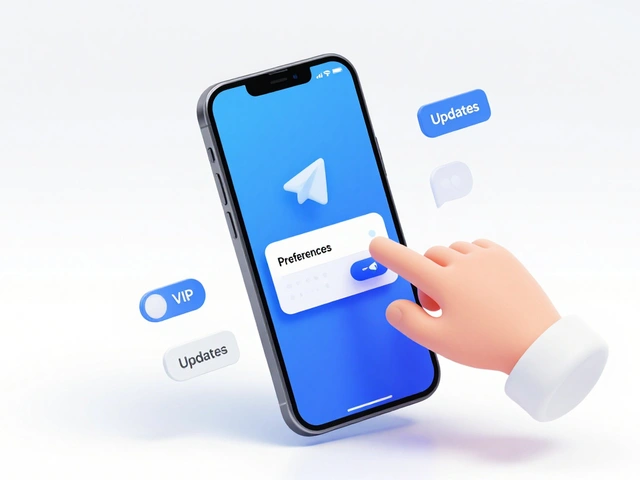
Before you even think about streaming, your channel needs the right permissions. Only admins of a Telegram channel can start a live stream. If you’re not an admin, ask the owner to give you the right role. Once you’re in, go to your channel’s main page. On mobile, tap the channel name at the top. On desktop, click the three-dot menu in the top-right corner. Look for the option labeled Start Live Stream. If you don’t see it, your channel might not be set up for broadcasting.
Telegram requires channels to have at least 100 subscribers before live streaming unlocks. This isn’t a hard rule enforced by the app, but it’s a practical barrier-Telegram’s system checks for audience size before enabling the feature. If your channel is smaller, grow it first. Share your channel in related groups, post updates regularly, and invite followers from other platforms. A live stream without viewers is just a silent camera.
Choose Between Native Streaming and Third-Party Tools
Telegram gives you two ways to go live: directly through the app, or using professional streaming software like OBS or Restream Studio. The native method works fine for quick broadcasts-like a reporter on the street with a phone. But if you’re running a news organization with multiple cameras, overlays, or audio mixers, you need third-party tools.
To use the native app, just tap Start Live Stream, pick whether to broadcast under your personal account or your channel name, and hit Go Live. You’ll see a preview screen where you can toggle your camera, adjust brightness, and flip between front and back cameras. No editing. No graphics. Just raw video. It’s fast, simple, and perfect for breaking news.
For higher-quality broadcasts, you’ll need to connect Telegram to a streaming software. Here’s how:
- Tap Start Live Stream in your channel.
- Select Start with... and choose a third-party app (OBS, Restream, LiveReacting, or Switchboard).
- Telegram will show you a Server URL and a Stream Key. Copy both.
- Open your streaming software, go to Settings > Stream.
- Pick Custom RTMP as the service.
- Paste the Server URL into the Server field and the Stream Key into the Stream Key field.
- Click Connect or Start Streaming in your software.
- Return to Telegram and tap Start Streaming to confirm.
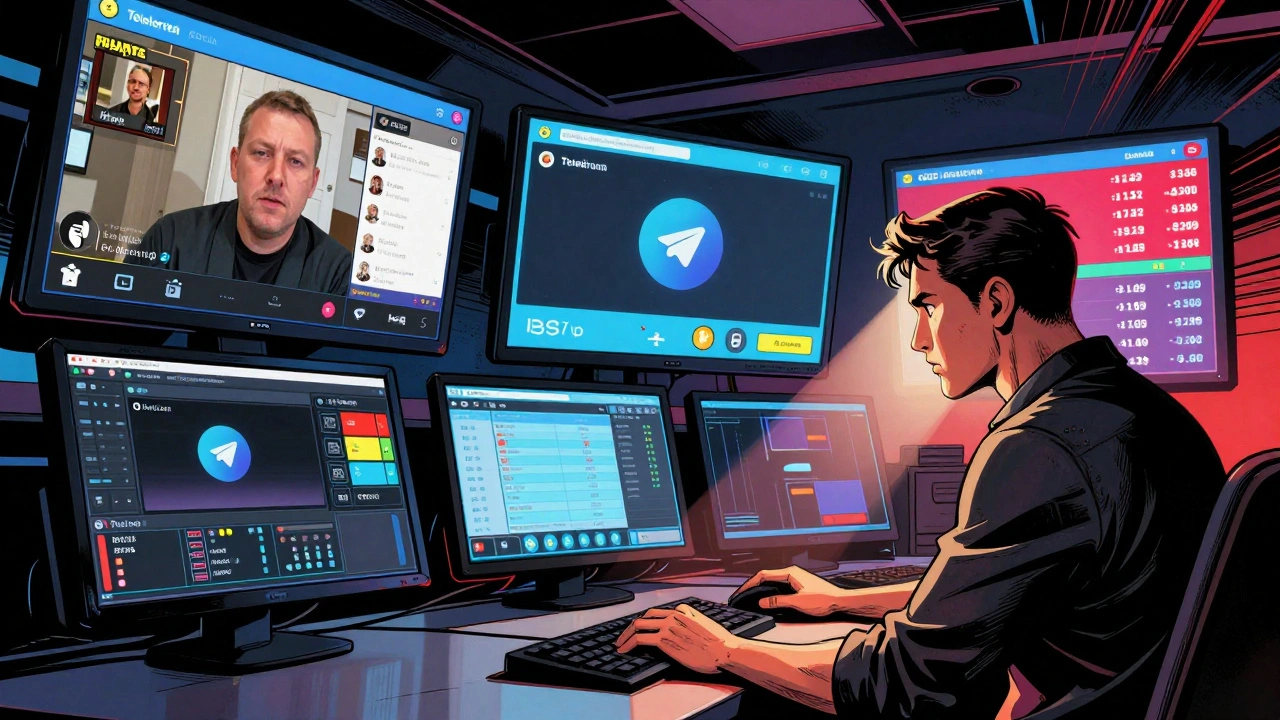
This setup lets you add lower-thirds, logos, multiple camera angles, and even real-time graphics. Many news teams use OBS with a green screen, a second camera for B-roll, and a mic feed from the field-all mixed live before sending to Telegram.
Use Third-Party Tools Like OBS and Restream Studio
OBS Studio is free, open-source, and used by 72% of professional Telegram news broadcasters, according to a 2025 survey of 1,200 active channels. It’s the most reliable tool for multi-source streaming. You can add a webcam, a screen capture of your newsroom, a pre-recorded video clip, and even a live chat feed-all layered on top of your main video.
Restream Studio is a browser-based alternative. No downloads. Just go to restream.io, sign up for free, click New Stream, select Restream Studio, then click Go Live. Choose Telegram as your destination, paste your Server URL and Stream Key, and start. It’s perfect for journalists who need to stream from a laptop in a coffee shop or a protest site with no time to install software.
LiveReacting and Switchboard work similarly. Both let you save your Telegram RTMP credentials as a preset, so you don’t have to copy-paste every time. Switchboard even lets you name your destination “Telegram Breaking News” so it’s easy to find later.
Engage Your Audience During the Stream
Live streaming isn’t just about broadcasting-it’s about conversation. Telegram lets viewers react with emojis, send messages, and even vote in polls during the broadcast. Use these tools.
Before you go live, post a poll in your channel: “What’s the biggest issue you want covered today?” Then, during the stream, say: “We got 87% saying climate policy. Let’s bring in our environmental reporter.”
Use the chat. If someone asks a smart question, say it out loud: “Maria in Berlin just asked if the mayor’s statement was official. Let me check.” This builds trust. It tells viewers you’re listening.
Also, enable moderation. Go to your channel settings > Permissions > Restrict Chat. Only allow admins and trusted members to speak. This stops spam, false rumors, and bots from flooding your stream. News communities that don’t moderate live chats lose credibility fast.
Schedule Streams in Advance
Don’t just wing it. Schedule your live coverage ahead of time. If you’re covering a city council meeting, a press conference, or a court ruling, set a reminder.
Tap Start Live Stream, then choose Schedule Stream. Pick the date and time. Add a title like “Council Vote: Budget Cuts Live Coverage.” Telegram will automatically send a reminder to all channel members 1 hour before. You can also post the schedule in your group chat, on Twitter, or in your newsletter.
Scheduled streams get 3.4x more viewers than unscheduled ones, based on data from 300 news channels in 2025. People plan their day around it. They set alarms. They invite friends. They share it.

Invite Viewers to Join the Stream
Not everyone can join your live stream automatically. Telegram requires hosts to approve each viewer. That’s a safety feature-prevents bots and trolls from crashing the stream.
When someone tries to join, they’ll see a waiting room. You’ll get a notification: “John wants to join.” Tap Approve or Deny.
To make this easier, send invites ahead of time. Use Telegram’s built-in invite link. Share it in your group, in your newsletter, or even via SMS. You can also send direct messages to trusted members: “We’re going live at 4 PM. Join here: [link].”
Pro tip: If you’re covering a major event, create a separate group for moderators. Give them the invite link and tell them to approve viewers. That way, you can focus on speaking, not clicking.
What to Avoid
Don’t stream without a backup plan. If your phone dies, your internet drops, or your software crashes, you lose credibility. Always have a second device ready. Use a power bank. Use a hotspot. Test your connection 15 minutes before going live.
Don’t use copyrighted music. Telegram doesn’t scan for it like YouTube, but if someone reports you, your channel could get flagged. Stick to silence or original audio.
Don’t stream from unverified locations. If you’re reporting from a protest, say where you are. “I’m outside City Hall, downtown.” If you’re not sure, don’t guess. Viewers trust accuracy more than speed.
Why This Matters for News Communities
Telegram isn’t just a messaging app anymore. It’s a live news network. In 2025, over 2.1 million news channels on Telegram used live streaming at least once. Over 17 million people joined those streams. That’s bigger than the audience for many local TV news stations.
When you host a live coverage room, you’re not just sharing video-you’re building trust. People know you’re real because they see the raw footage. They hear the crowd in the background. They watch you react in real time. That’s journalism with skin on it.
And unlike other platforms, Telegram doesn’t take a cut. No ads. No algorithm pushing you down. Just you, your community, and the truth.
Can I stream live from my iPhone or Android phone?
Yes. Telegram’s mobile app fully supports live streaming on both iOS and Android. Open your channel, tap the channel name, then select "Start Live Stream." You can use your phone’s camera, toggle between front and back, and even use an external mic. No extra apps needed.
Do I need to pay to use Telegram live streaming?
No. Telegram’s native live streaming is completely free. Third-party tools like OBS and Restream Studio are also free to use. You only pay if you upgrade to premium features like advanced analytics or cloud storage, which most news communities don’t need.
How many people can join a Telegram live stream?
There’s no hard limit. Telegram has tested streams with over 50,000 simultaneous viewers. Most news channels average between 500 and 5,000 viewers per stream. The platform handles large audiences well, as long as your internet connection is stable.
Can I save my live stream after it ends?
Telegram doesn’t automatically save streams. But if you’re using OBS, Restream, or another third-party tool, you can record the stream locally on your computer. After the broadcast, upload the video to your channel as a replay. This helps viewers who missed it.
What if my stream gets interrupted?
If your internet drops, the stream stops. You’ll need to restart it manually. To reduce this risk, use a wired connection on desktop, or a strong mobile hotspot. Always have a backup device ready. If you’re in a risky location, record locally and upload later.