When a breaking story hits, every second counts. But when you hit 'send' on Telegram, the platform quietly crushes your high-resolution photos and crisp videos into smaller, blurrier files to save bandwidth. For casual chats, that’s fine. For news organizations, investigative journalists, and channel admins who rely on visual evidence, it’s a disaster. You lose readable text in documents, facial details in crowd shots, and the clarity needed for fact-checking.
The good news? You don’t have to accept low-quality images as the cost of speed. Telegram gives you tools to bypass this automatic compression, but they are hidden behind simple menu options that most users miss. This guide breaks down exactly how to keep your visuals sharp, when to sacrifice quality for speed, and how to automate the process so your team never has to guess again.
Quick Summary
- Bypass Compression: Use the "Send as File" option to transmit photos and videos without any quality loss or resolution reduction.
- Set Defaults: Change settings in Data and Storage to automatically send all media as files, saving time during rapid uploads.
- Adjust Video Quality: Use the quality slider before sending videos to manually balance bitrate and file size if you aren't using the file method.
- Choose Your Strategy: Prioritize compressed media for instant breaking news alerts; use uncompressed files for investigative journalism and archival documentation.
- Automate Workflows: Tools like Pabbly Connect can schedule and trigger high-quality media posts directly to your channel via API.
Why Telegram Compresses Media (And Why It Hurts News)
To understand how to fix the problem, you first need to know what’s happening under the hood. Telegram is a cloud-based messaging application founded by Pavel Durov and Nikolai Durov in 2013. With approximately 900 million monthly active users as of 2024, it handles an enormous amount of data. To keep servers from crashing and ensure messages load instantly even on slow connections, Telegram applies aggressive default compression to every image and video uploaded through its standard media viewer.
This compression reduces three key things: resolution, color depth, and file size. A typical 12-megapixel smartphone photo might shrink from 5 MB down to less than 1 MB. A 30-second 1080p video could drop from 200 MB to just 20 MB. While this speeds up transmission, it strips away the fine details that make news content credible. If you are uploading a photo of a protest sign, a document with small print, or a distant landmark for verification, Telegram’s default JPEG compression (often estimated at 60-75% quality) can render those details unreadable.
For news distribution, this creates a tension between speed and fidelity. Breaking news demands seconds, not minutes. Investigative reporting demands pixels, not guesses. Knowing which side of that line you are on determines which optimization strategy you should use.
How to Send Photos Without Compression
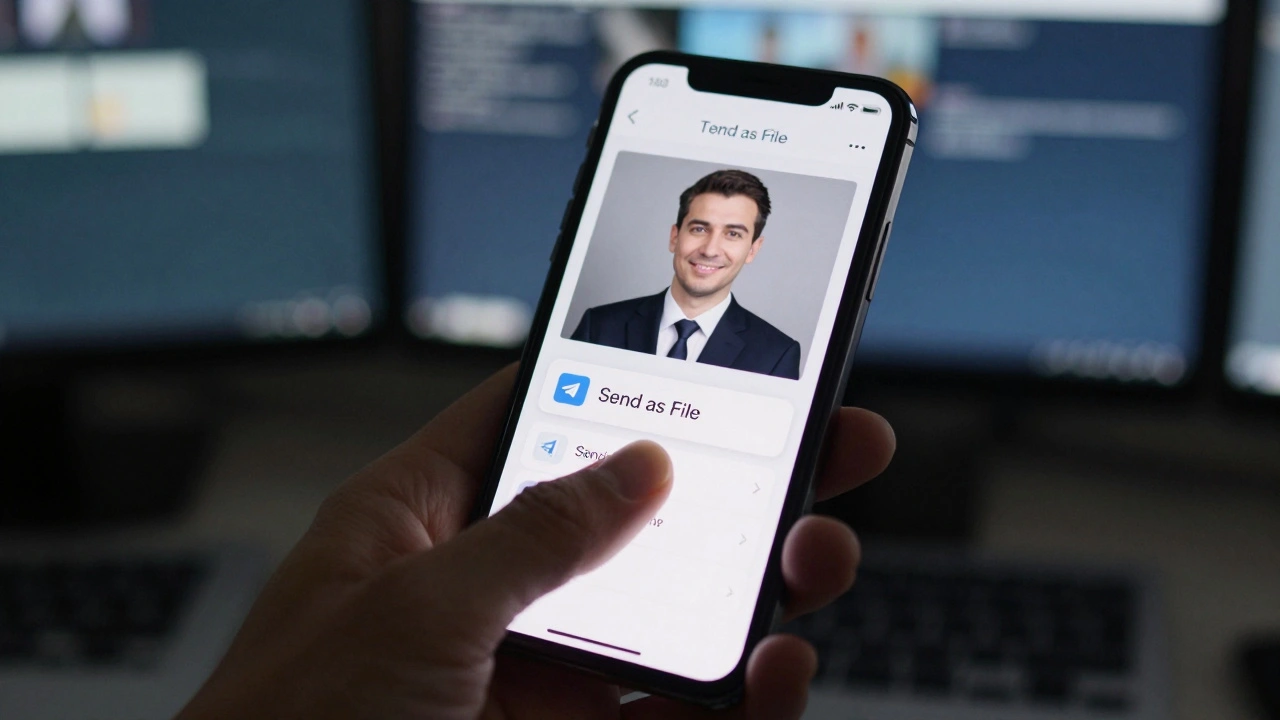
The most effective way to preserve image quality on Telegram is to stop treating your photos as "media" and start treating them as "files." When you upload a photo normally, Telegram processes it. When you send it as a file, Telegram simply transfers the raw data packet. No processing, no resizing, no quality loss.
Here is how to do it across different devices:
- Open the Attachment Menu: Tap the paperclip icon (iOS/Android) or the attachment button (Desktop/Web).
- Select Your Media: Choose the photo(s) you want to send from your gallery or device storage.
- Find the Options Menu: In the preview screen, look for the three-dot menu icon (usually in the top right corner).
- Select "Send as File": Instead of tapping the blue arrow to send immediately, choose this option. On mobile, you may see "Send as Photo" vs "Send as File." Always pick the latter.
This method works for single images and batch selections. If you select ten photos at once, the "Send as Files" option remains available. The result is that recipients download the exact original file you uploaded. They will see a file icon with the name and size rather than a large preview image in the chat stream, but they can view it in full resolution by opening the attachment.
Optimizing Video for News Channels
Videos are trickier because file sizes grow exponentially with duration and resolution. Sending a raw 4K video as a file might take hours to upload and consume gigabytes of your subscribers’ data. However, Telegram offers a middle ground through its built-in quality slider.
Before sending a video normally (not as a file), tap the resolution indicator shown in the preview window (it often displays "480" or "720"). A slider appears. Dragging it to the right increases the output resolution and bitrate. The interface shows real-time feedback on the resulting file size and dimensions.
- Left Position: Lowest quality, smallest file size. Good for quick previews or very slow networks.
- Right Position: Maximum available quality within Telegram's streaming framework. Larger file size, better detail.
If absolute fidelity is required-for example, releasing footage of a crime scene where license plates or faces must be identifiable-use the "Send as File" method for videos too. This preserves the original bitrate and codec integrity. Just be aware that viewers must wait for the entire file to download before playback begins, unlike streamed compressed videos which start playing almost instantly.
Setting "Send as File" as Default
If you are managing a news channel and constantly uploading high-fidelity images, clicking the three-dot menu every time adds up. You can change this behavior permanently in your app settings.
Navigate to Settings > Data and Storage > Photos. Look for the toggle labeled "Send as File by Default". Enable this, and every photo you attach will automatically bypass compression unless you manually override it. This is crucial for teams working under pressure; it removes the cognitive load of deciding whether to compress each individual asset.
Note that this setting applies to the specific device it is configured on. If your news desk uses multiple phones or computers, each one needs this setting adjusted individually.
Speed vs. Quality: Choosing the Right Strategy
Not every piece of news requires uncompressed media. In fact, sending huge files during a fast-moving crisis can clog your channel and frustrate users on limited data plans. Here is a practical decision matrix for news editors:
| News Type | Priority | Recommended Method | Reasoning |
|---|---|---|---|
| Breaking Alerts | Speed | Default Compression | Seconds matter. Visuals are secondary to the headline. |
| Investigative Docs | Fidelity | Send as File | Text readability and evidentiary detail are critical. |
| Live Event Coverage | Balance | Quality Slider (High) | Needs to play quickly but retain enough detail for context. |
| Archival/Historical | Fidelity | Send as File | Preserves source material for future reference and credibility. |
Consider your audience’s connectivity. In regions with robust 4G/5G infrastructure, uncompressed files are less of a burden. In areas relying on 3G or unstable Wi-Fi, a 50 MB video file sent as a document may never fully download for many users. In those cases, a highly optimized compressed video reaches more people, even if the quality is lower.
Automating High-Quality Distribution
Manual uploading doesn’t scale for large newsrooms. Automation platforms like Pabbly Connect is a workflow automation tool that integrates with Telegram APIs allow you to push media programmatically. You can set up workflows where a new row in a Google Sheet triggers a post to your Telegram channel.
When automating, you specify the media URL and the target Chat ID. Crucially, you can define the media type. If you store your high-res assets in a cloud bucket, the automation tool can fetch the direct link and send it. However, note that API methods vary slightly from manual app behaviors. Most bots send media as compressed streams by default. To send uncompressed files via bot, you typically need to use specific API endpoints designed for file transfer rather than media groups, ensuring the metadata and quality remain intact.

Security and Metadata Considerations
A common concern among journalists is whether sending files exposes sensitive metadata. Telegram applies encryption to all transmissions. In regular chats, server-side encryption protects the data in transit and at rest. In "Secret Chats," end-to-end encryption is used. Importantly, the choice between compressed and uncompressed transmission does not alter the encryption protocol.
However, file handling differs. Standard compressed media often have some EXIF data stripped by Telegram’s processing engine. When you send a photo "as a file," the original file-including potentially sensitive GPS coordinates, camera model, and timestamp metadata-is preserved. If you are sourcing material from whistleblowers or operating in hostile environments, always strip metadata using external tools before uploading, regardless of your transmission method.
Comparing Telegram to Other Platforms
Why choose Telegram for news delivery when other apps exist? The answer lies in control. WhatsApp, owned by Meta, applies aggressive compression with no public option to send uncompressed media easily. Signal, while privacy-focused, also compresses media by default with limited bypass options. Twitter/X compresses images for timeline display, though higher-res downloads are possible via links. Facebook Messenger prioritizes mobile bandwidth efficiency over fidelity.
Telegram’s explicit "Send as File" feature positions it uniquely for professional use. It acknowledges that some users need the raw data, not just a preview. This makes it superior for distributing verified visual evidence, press kits, and high-quality documentary content compared to its competitors.
Troubleshooting Common Issues
Issue: Recipients say the file won't open.
Solution: Ensure the file format is widely supported (JPEG, MP4). Avoid obscure formats like RAW or ProRes unless your audience specifically requests them. Telegram supports standard web-friendly codecs best.
Issue: The "Send as File" option is missing.
Solution: Update your Telegram app. Older versions may lack this feature or place it in a different menu location. Also, check if you are using a third-party client; only official Telegram clients guarantee full feature parity.
Issue: Videos are still blurry after adjusting the slider.
Solution: If the source video was already low quality, increasing the bitrate won't add detail that isn't there. Start with high-quality source recordings. If the source is good but the output is bad, switch to "Send as File" to rule out Telegram's re-encoding artifacts.
Does sending photos as files cost more data?
Yes. Uncompressed files are significantly larger than Telegram's compressed versions. A 5 MB photo might become 0.5 MB when compressed. Senders and receivers will use more mobile data or bandwidth when transmitting files. Consider your audience's data plans before choosing this method for mass distribution.
Can I change the compression level for videos?
You cannot set a custom compression algorithm, but you can adjust the quality slider before sending a video. Moving the slider to the right increases the bitrate and resolution, resulting in higher quality but larger file sizes. For zero compression, use the "Send as File" option.
Is "Send as File" secure for sensitive news sources?
The transmission itself is encrypted, but "Send as File" preserves original metadata (like GPS locations) that compressed media might strip. For sensitive sources, always strip metadata externally before sending, or use Telegram's Secret Chat feature for end-to-end encryption.
Why does my video look pixelated even with high quality settings?
If the source video was recorded at a low resolution or bitrate, Telegram's quality slider cannot create detail that doesn't exist. It only controls how much of the existing data is preserved during transmission. Always start with high-quality source footage for best results.
Do automated bots support sending uncompressed files?
Yes, but it requires specific API implementation. Most basic bot integrations send media as compressed streams. To send uncompressed files via automation tools like Pabbly Connect, you must configure the workflow to use file-transfer endpoints rather than standard media posting endpoints.