Remember when using a chatbot felt like typing commands into a terminal? You’d type "/start", wait for a response, and then guess the next command. It was clunky, slow, and frankly, boring. That era is over. Today, Telegram bot buttons are interactive UI elements that replace text commands with clickable options, significantly improving user experience and engagement in automated messaging systems. They transform static conversations into dynamic, guided experiences where users simply tap what they need.
If you want to build an explainer bot-a tool that teaches, guides, or sells-you can’t rely on plain text anymore. You need interactivity. This guide breaks down exactly how to create those buttons, whether you’re coding in Python or dragging nodes in a no-code platform. We’ll cover the technical specs, the design psychology, and the practical steps to get your first interactive menu live.
The Two Types of Telegram Buttons
Before writing any code or connecting any workflows, you need to understand the anatomy of a Telegram button. There are two distinct types, and choosing the wrong one can ruin your user interface.
InlineKeyboardButton is a button type that appears directly below a specific message within the chat thread, allowing for context-specific interactions without replacing the main keyboard. These are the gold standard for explainers. Why? Because they stay attached to the message they relate to. If I send you a message explaining "Option A" and "Option B," the buttons appear right under that text. The user sees the context and the action simultaneously. It’s clean, it’s intuitive, and it doesn’t clutter the screen.
The alternative is the ReplyKeyboardButton which is a persistent button layout that replaces the entire keyboard at the bottom of the chat window, remaining visible until explicitly removed by the bot. These sit at the very bottom of your app, replacing your physical keyboard (on mobile) or the text input area (on desktop). They are great for global navigation menus-like a permanent "Home" or "Help" button-but terrible for detailed explainers. If you use ReplyKeyboards for every step of a tutorial, the user has to scroll up to read the explanation and then scroll down to click the button. Friction kills conversion. Stick to InlineKeyboardButtons for interactive content.
The Technical Backbone: Callback Data
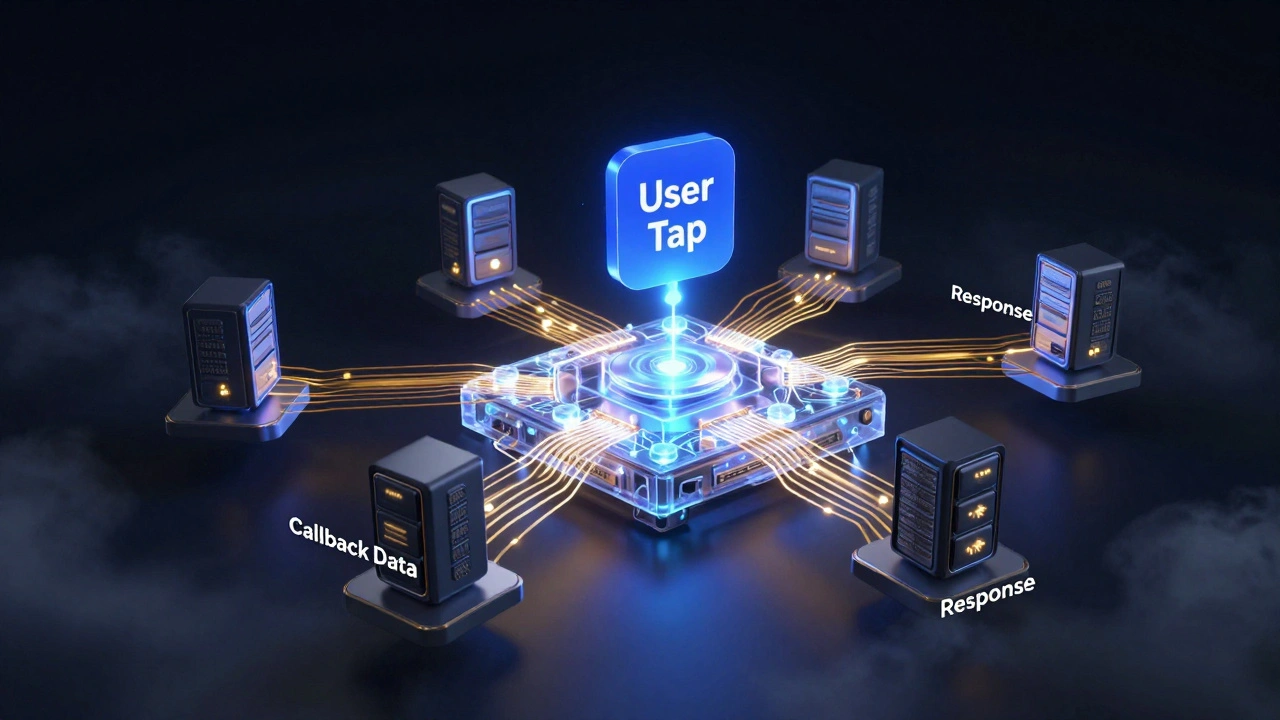
Here is the secret sauce that makes buttons work: callback_data is a hidden parameter sent from the button to the bot's backend server when clicked, triggering specific logic without sending a visible message to the chat.
When a user clicks a button, they aren’t sending a text message. They are sending a signal. That signal contains the `callback_data` string you defined when building the button. For example, if you have a button labeled "Learn More about Pricing," the label is just for display. The `callback_data` might be `pricing_v1`. When the user taps it, Telegram sends a "Callback Query" to your bot containing that ID. Your bot’s backend receives this query, reads the ID, and executes the corresponding code.
This mechanism is critical because it keeps the chat history clean. Users don’t see a flood of "I clicked pricing" messages. They just see the new information appear. However, there is a catch. If your bot receives the callback but doesn’t respond, the button will show a spinning loader icon indefinitely. It looks broken. Always ensure your code includes a response to the callback query-even if it’s just an empty acknowledgment-to clear that loading state instantly.
Building with Code: Python and Aiogram
If you are a developer, Python is likely your language of choice. While libraries like `python-telegram-bot` are popular, many developers prefer Aiogram as an asynchronous Python framework for Telegram Bot API that offers high performance and flexible control over button implementations and state management. Aiogram handles the async nature of Telegram updates efficiently, which matters when you have thousands of concurrent users clicking buttons.
To set up a basic inline button in Aiogram, you define the markup structure. You create an array of buttons, organize them into rows, and attach the callback data. Here is the logical flow:
- Import the types: You need `InlineKeyboardButton` and `InlineKeyboardMarkup`.
- Define the button: Create a button object with text (e.g., "Next Step") and callback data (e.g., "step_2").
- Structure the row: Place the button inside a list to form a row. You can add multiple buttons to a row to display them side-by-side.
- Create the markup: Wrap the row(s) in an `InlineKeyboardMarkup` object.
- Send the message: Pass the markup object to the `reply_markup` parameter of your message send function.
For more complex interactions, you’ll use callback handlers. These are functions decorated to listen specifically for `callback_query` events. Inside these handlers, you check the `data` attribute of the callback. If it matches "step_2", you send the next part of your explainer. This modular approach keeps your code clean and scalable.
No-Code Solutions: Make.com and N8N
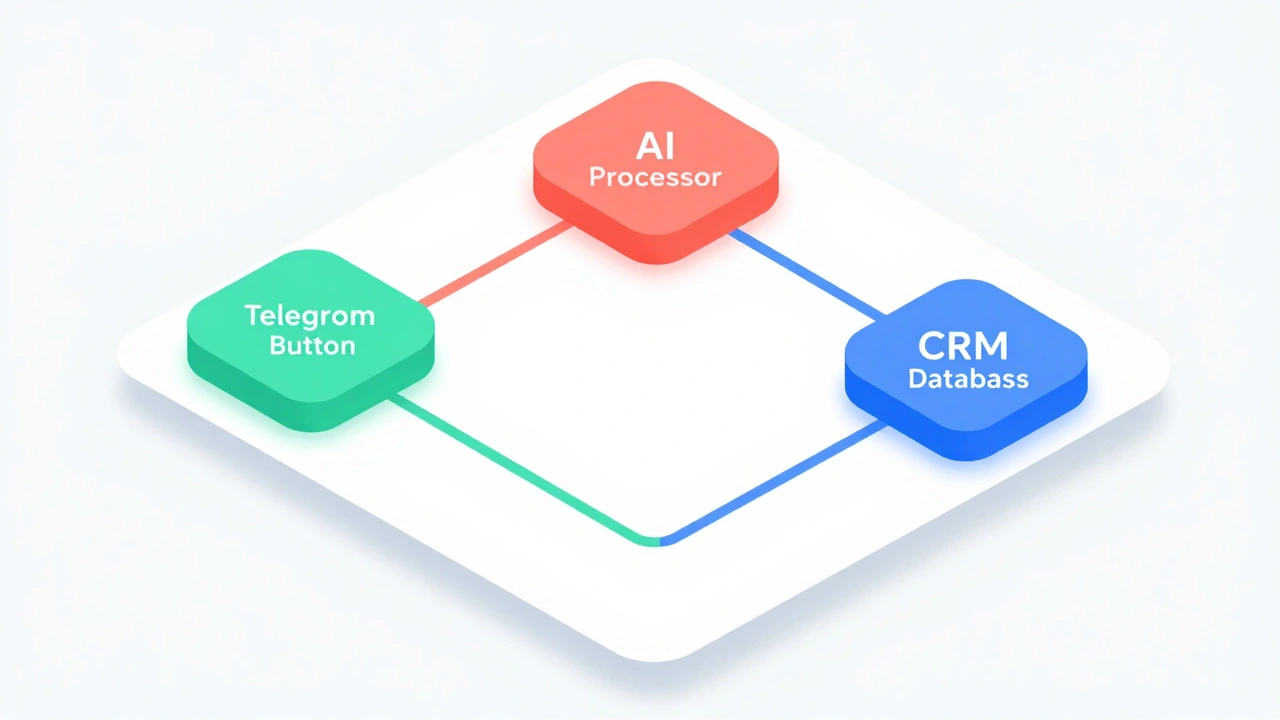
You don’t need to write Python to build powerful bots. Platforms like Make.com is a visual workflow automation platform that allows users to create Telegram bots with interactive buttons without writing code, integrating easily with AI services and CRMs. and N8N is a node-based workflow automation tool that enables the creation of dynamic Telegram bot menus with multi-level navigation and conditional logic through its visual interface. have democratized this technology.
In Make.com, you can drag a "Telegram" module onto your canvas. You configure it to send a message, and there is a dedicated field for "Inline Keyboard." You simply enter the button text and the callback value. The magic happens in the routing. You can connect a button press event to an AI service like Groq or Llama. Imagine a scenario: A user clicks "Create Task." The bot asks for details via voice or text. An AI node processes that input, generates a title and description, and then presents a confirmation button. When the user clicks "Confirm," the workflow pushes that data into ClickUp or another CRM. All of this triggered by a single tap, with zero lines of code written by you.
N8N takes a similar approach but emphasizes conditional logic. You can build multi-level menus where clicking "Sales" reveals sub-buttons for "Leads," "Deals," and "Customers." N8N’s templates often include "Back" buttons automatically, which is a crucial UX feature we’ll discuss next.
UX Best Practices for Interactive Explainers
Having buttons is easy. Making them usable is hard. Based on industry standards and user behavior patterns, here are non-negotiable rules for designing your button interfaces.
- Always Provide an Escape Route: In any multi-level menu, always include a "Back" or "Home" button. Users panic when they feel trapped. If they click into a deep sub-menu, give them a way out. Don’t make them restart the whole conversation.
- Use Emojis Strategically: Text-only buttons look sterile. Adding emojis creates visual hierarchy. 📊 for analytics, 🛠️ for settings, 💬 for support. It helps users scan the options faster than reading words. But don’t overdo it-one emoji per button is enough.
- Clear Action Verbs: Avoid vague labels like "Info" or "Details." Use action-oriented text: "View Report," "Download PDF," "Contact Support." Tell the user exactly what will happen when they click.
- Limit Options Per Screen: Cognitive load is real. Don’t put ten buttons in one row. Group related actions. If you have too many options, break them into pages or categories. A clean interface feels premium; a cluttered one feels amateur.
- Test Every Path: A single typo in a `callback_data` string can break an entire navigation flow. Test your bot rigorously. Click every button, go back, go forward, and try to break it. If a handler isn’t found, ensure your bot responds gracefully with an error message rather than crashing silently.
Advanced Feature: Message Editing
One of the most powerful features of inline buttons is the ability to edit the parent message. When a user clicks a button, your bot can update the text of the message above the buttons. This creates a seamless, app-like experience.
Imagine a quiz bot. The question is displayed with four answer buttons. When the user clicks "Answer B," the bot doesn’t send a new message saying "Correct!" Instead, it edits the original message to change the color of the correct answer, adds a brief explanation, and hides the buttons. This keeps the chat history tidy and focuses the user’s attention on the result. To implement this, you need to store the `message_id` of the original message in your database or session state so your bot knows which message to target when the callback arrives.
What is the difference between InlineKeyboardButton and ReplyKeyboardButton?
InlineKeyboardButton appears directly below the message it is attached to, keeping the interaction contextual. ReplyKeyboardButton replaces the entire keyboard at the bottom of the chat window, making it persistent across messages. For interactive explainers, InlineKeyboardButtons are preferred because they do not disrupt the user's view of previous messages.
Do I need to know Python to create Telegram bot buttons?
No. While Python frameworks like Aiogram offer granular control, no-code platforms like Make.com and N8N allow you to build fully functional bots with interactive buttons using visual drag-and-drop interfaces. These platforms handle the underlying API calls and callback routing for you.
Why does my button show a loading spinner after being clicked?
This happens when your bot receives the callback query but fails to send a response. Telegram expects an acknowledgment to clear the loading state. Ensure your code includes a response to the callback query, even if it is just an empty message or a simple acknowledgment, to remove the spinner immediately.
Can I edit the message text when a button is clicked?
Yes. By storing the message ID of the original post, your bot can use the 'Edit Message' API method to update the text, caption, or media of the message associated with the button. This creates a dynamic, app-like interface without cluttering the chat history.
What is callback_data and why is it important?
Callback_data is a hidden string parameter attached to an inline button. When a user clicks the button, this data is sent to your bot's backend as a callback query. It allows you to trigger specific actions or logic based on the button clicked without requiring the user to type anything, enabling seamless automation and navigation.
Latest Posts