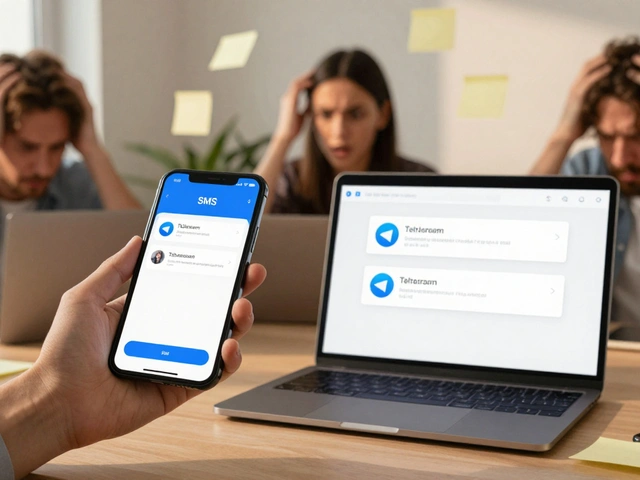
Imagine getting every new article, blog post, or news update from your favorite sites delivered straight to your Telegram channel - without lifting a finger. No copying links. No pasting headlines. No checking six different feeds every morning. That’s what RSS.app + Telegram does. And it’s not some complicated coding project. It’s a two-minute setup that works for anyone - whether you run a small community, manage a newsletter, or just want to stay on top of industry news without the noise.
Why This Setup Makes Sense
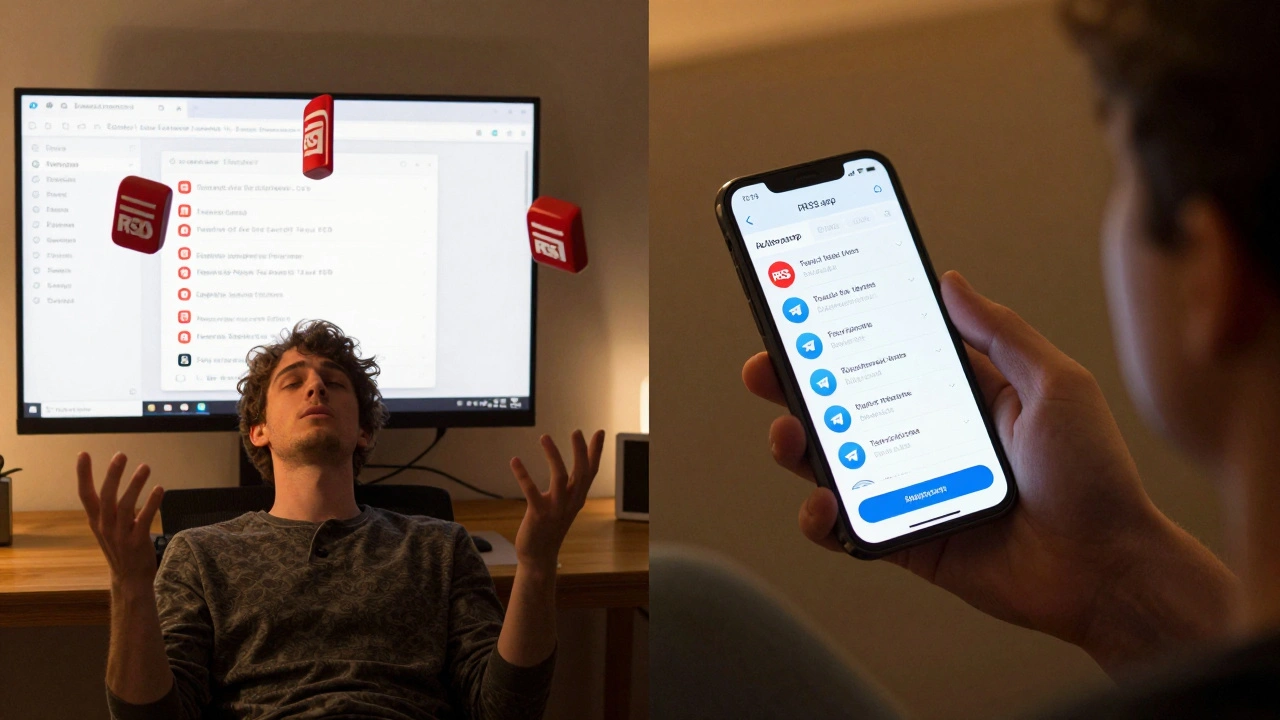
Most people still manually share news on Telegram. They open their browser, check a few RSS feeds, copy the title and link, then paste it into their group. It’s tedious. It’s inconsistent. And by the time you get around to posting, the news is already old. RSS.app solves that. It watches your chosen RSS feeds 24/7 and pushes new items straight to Telegram the moment they appear. You can connect dozens of sources - tech blogs, financial updates, podcast releases, even email newsletters - and turn them all into one automated stream. No more juggling tabs. No more forgetting to post. Telegram’s bot system makes this seamless. RSS.app uses a dedicated bot,@news_alerts_rss_bot, to send updates. Once connected, it behaves like a real member of your channel or group - posting messages, handling replies, and even organizing content into topics.
How to Set It Up (Step-by-Step)
You don’t need to be tech-savvy. Here’s exactly how to do it:- Add the bot to your Telegram channel or group. Go to your group settings, tap "Edit," then "Add Members." Search for
@news_alerts_rss_botand add it. - Grant admin rights. Still in group settings, go to "Permissions" and make sure the bot has permission to "Send Messages." Without this, it won’t post anything.
- Connect your Telegram account to RSS.app. Go to rss.app, sign in, and click "Connect Bot" on the integration page. You’ll be redirected to Telegram to approve access - just tap "Allow" on your phone.
- Pick your feed. On RSS.app, create or select an existing RSS feed (or bundle multiple feeds together). Click the Telegram icon next to it, then choose your channel or group from the list.
- Confirm and go. The bot will immediately start sending new items as they appear. No delay. No manual work.
That’s it. You’re done. Within 90 seconds, your Telegram channel is now auto-updating with fresh content from every source you care about.
Advanced Features You Didn’t Know About
The basic setup is powerful. But RSS.app goes further:- Telegram Topics: If you’re using a large group with topics (like "Tech News," "Finance," "Podcasts"), you can send each feed to its own topic. No more clutter. Each update appears in the right category, making it easier for members to follow what matters to them.
- Filter keywords: Don’t want posts about "Apple stock" or "crypto crash"? Set up filters to exclude those words. Or only include posts with certain keywords - like "AI breakthrough" or "new launch."
- Full content or just the link: Some feeds have long summaries. You can choose to send only the title and link, or the full text. For quick scrolling, links work best. For deep readers, full content keeps them in Telegram.
- Email-to-RSS: Got newsletters? RSS.app gives you a custom email address. Subscribe your newsletters to it, and they’ll show up as RSS items - then get pushed to Telegram automatically. No more sifting through your inbox.
- Bundle feeds: Instead of connecting ten separate feeds to ten different channels, combine them into one bundle. Send all updates to a single Telegram channel. Perfect for publishers who manage multiple blogs or content streams.
Free vs. Premium: What You Get
RSS.app has a free plan that does 90% of what most people need:- Connect up to 3 feeds
- Send to one Telegram channel or group
- Basic refresh rate (every 30 minutes)
- No filters or custom formatting
If you’re serious about automation - running a business, managing a team, or handling dozens of sources - the premium plan ($5/month) unlocks:
- Unlimited feeds and bundles
- Refresh every 5 minutes (critical for breaking news)
- Keyword filters, custom templates, and full content control
- Priority support and faster delivery
For most users, the free plan is enough to get started. But if you’re posting 5+ times a day, you’ll feel the delay. Premium removes that friction.
Who Uses This? Real Use Cases
This isn’t just for hobbyists. People are using it in real ways:- Small publishers auto-post their blog updates to Telegram, then link to it from Twitter and Discord. Engagement jumped 40% for one site because readers got instant alerts.
- Community managers in crypto and SaaS groups use it to share curated news from TechCrunch, The Verge, and Hacker News - all in one place.
- Newsletters that send weekly digests now use RSS.app to push each article as it’s published. Subscribers get real-time updates instead of waiting for a weekly email.
- Researchers track academic journals and patent filings via RSS, then pipe them to a private Telegram group for team updates.
It’s not magic. It’s just automation done right.
What About Other Tools?
You might’ve heard of IFTTT, Zapier, or Pabbly Connect. They can do this too - but they’re overkill. RSS.app is built for one thing: turning RSS into Telegram alerts. No extra steps. No complex triggers. No learning 15 different apps. It’s focused. It’s simple. And it works. Zapier, for example, requires you to set up a trigger (new RSS item), then an action (send to Telegram). You need an account, permissions, and sometimes paid tiers. RSS.app? One click. Done. And unlike some tools that break when RSS feeds change format, RSS.app handles malformed feeds gracefully. It retries. It logs errors. It keeps going.Common Mistakes to Avoid
Even with a simple setup, people mess it up:- Forgetting to give the bot admin rights - the #1 reason nothing posts. Double-check permissions.
- Using a personal chat instead of a channel - Telegram bots can’t post to private chats unless you start the conversation first. Use a channel or group.
- Adding too many feeds - if you connect 20 feeds, your Telegram group becomes a firehose. Start with 3-5. Add more later.
- Not testing - after setup, manually trigger a test post. Go to your feed on RSS.app, click "Send Now," and see if it shows up.
What’s Next?
Once you’ve got one feed working, try adding another. Maybe your favorite YouTube channel’s RSS. Or your company’s blog. Or a subreddit feed. Then bundle them. Then filter them. Then send them to a topic. The more you use it, the more you’ll see how much time it saves. You’ll stop checking feeds. You’ll stop posting manually. And you’ll wonder why you ever did it the hard way.Can I use RSS.app with private Telegram groups?
Yes. RSS.app works with both public and private Telegram groups. Just make sure the bot is added as a member and has permission to post. Private groups require you to manually invite the bot - it won’t appear in search results unless you know its username (@news_alerts_rss_bot).
How often does RSS.app check for new content?
On the free plan, RSS.app checks feeds every 30 minutes. Premium users get updates every 5 minutes. This matters if you’re tracking breaking news or fast-moving blogs. For most blogs and newsletters, 30 minutes is fine.
Can I send RSS updates to multiple Telegram channels at once?
Yes. You can connect the same RSS feed to several channels or groups. Just click the Telegram icon on the feed page and select each destination. This is useful if you manage different audiences - like a public channel for general updates and a private group for subscribers.
What if my RSS feed stops updating?
First, check if the feed is still active by opening it in your browser. If it’s broken, RSS.app won’t send anything. RSS.app shows an error log in your dashboard. If the feed is fine but nothing’s posting, re-link the bot. Sometimes Telegram permissions reset after updates.
Does RSS.app work with email newsletters?
Yes. RSS.app gives you a unique email address. Subscribe any newsletter to that address, and it’ll appear as an RSS item. Then you can pipe it to Telegram just like any other feed. It’s perfect for newsletters that don’t offer RSS.