On a $75 Infinix Smart 6 in rural India, a teenager tries to send a voice note to their family group. The screen freezes. The message fails. Again. This isn’t a glitch-it’s the reality for hundreds of millions of users on low-end Android devices. Telegram works on these phones, but only if you know how to tweak it. Most people don’t. And that’s why so many switch to WhatsApp, even when it crashes every other day.
Why Telegram Slows Down on Budget Phones
Telegram isn’t bloated by design. It’s still under 35MB installed. But out of the box, it tries to run like a flagship phone app. Animated backgrounds, smooth transitions, auto-downloading videos-even on a device with 1GB of RAM. That’s like trying to run a video game on a calculator. The problem isn’t just memory. It’s how Android manages apps on budget hardware. Devices with 2GB RAM or less often have slow processors like the Mediatek Helio A22 or Qualcomm Snapdragon 210. These chips can’t handle heavy animations or constant background syncing. When Telegram tries to load 50 animated stickers, rotate the chat background, and download a 10MB video all at once, the phone chokes. According to Telegram’s own internal tests, standard mode uses 45-75MB of RAM on these devices. With Power Saving Mode turned on? It drops to 15-25MB. That’s more than half the memory freed up. And that’s just the start.Power Saving Mode: The Hidden Game-Changer
Launched in March 2024, Telegram’s Power Saving Mode isn’t just a toggle. It’s a full system overhaul for low-end hardware. You’ll find it under Settings > Power Saving. But most users miss it because it’s buried and doesn’t say “fix your phone.” Here’s what it actually turns off:- Background rotation - stops the chat wallpaper from slowly spinning. Saves 1.2-2.5% CPU on budget chips.
- Side menu animations - disables the slide-in effect when opening topics. Saves 0.8-1.7% CPU.
- Animated spoilers - turns off the fade-in effect on hidden text. Saves 0.5-1.3% CPU.
- Night theme blur - removes the soft glow behind dark mode backgrounds. Saves 1.4-2.8% CPU.
- Zoom animations - stops images from gently zooming when tapped. Saves 0.7-1.9% CPU.
Cache Size: Bigger Isn’t Always Better
Here’s the counterintuitive part: you need to give Telegram more space to run faster. Yes, really. By default, Telegram keeps only 1GB of media cached. On a phone with 32GB storage, that’s fine. But on a device with 2GB RAM, the system constantly swaps data in and out of memory. If Telegram’s cache is too small, it has to reload the same images and videos over and over. That uses more CPU and RAM than just keeping them stored locally. Set your cache to 4-6GB. Go to Settings > Data and Storage > Storage Usage > Keep Media. Change it from 1GB to 5GB. On devices tested by Beebom, this improved download speeds by 33-48%. Why? Because the app doesn’t have to re-fetch the same file from the server. It pulls it from local storage instead-faster, cheaper, and uses less battery. Don’t worry about running out of space. Most budget phones come with 32GB or more. Even if you’re tight, 5GB is less than 20% of your storage. And it’s worth it.Auto-Download Settings: Stop the Data Flood
Auto-downloads are the silent killer of low-end Android performance. Telegram downloads photos, videos, and documents as soon as they arrive-even if you’re on mobile data with 2% battery left. Go to Settings > Data and Storage > Auto-Download Media. Here’s what you should set:- When using mobile data: Only download photos (no videos, no files).
- When using Wi-Fi: Allow photos and videos under 5MB.
- When battery is below 30%: Turn off all auto-downloads.

Battery Optimization: Don’t Let Android Kill Telegram
Android thinks it’s helping by killing background apps to save battery. But on budget phones, that just breaks Telegram. Most users don’t realize their phone is killing Telegram’s background processes. That’s why messages arrive late, or why the app doesn’t sync when you reopen it. Go to Settings > Battery > App Battery Management (or similar, depending on your brand). Find Telegram. Change the setting from “Optimized” or “Restricted” to “Unrestricted.” ITurrit’s July 2024 troubleshooting guide found this single step fixed 57% of background sync issues. You’ll get notifications faster. Messages will sync properly. The app won’t crash when you switch back to it. Don’t be fooled by “battery saver” modes on your phone. Those often override app settings. Disable them for Telegram specifically.MTProto Proxy: Bypass Network Throttling
In many emerging markets, mobile carriers throttle Telegram traffic. Not because it’s illegal-because it’s popular. When 10,000 people in a village are all using Telegram at once, the network gets clogged. Telegram’s MTProto protocol lets you route traffic through alternative servers. This bypasses throttling. It’s not magic, but it works. Go to Settings > Data and Storage > Connection Type. Tap “Use Proxy.” Then tap “Add Proxy.” Choose “MTProto.” Use the servers listed on speedtest.telegram.org. They’re tested daily. In India, users saw latency drop from 320ms to 173ms after switching. That’s the difference between a message sending in 1 second versus 2. This feature is especially powerful if you’re on Jio, Airtel, or MTN networks-where throttling is most common.What You Lose (And Why It’s Worth It)
Power Saving Mode isn’t perfect. You’ll lose some flair. Animated stickers? Disabled. Backgrounds that move? Gone. Smooth transitions? Replaced with instant changes. Some users miss this. Reddit user u/BudgetPhoneGuru said, “I used to love the spinning background. But now I don’t even notice it’s gone. My phone doesn’t freeze anymore.” You’re trading aesthetics for reliability. And in markets where a failed message could mean missing a job interview or a family emergency, reliability wins. Also, if you rely heavily on bots or mini-apps inside Telegram, you might notice slight delays. That’s because those features are more resource-heavy. But for 90% of users-chatting, sharing photos, sending voice notes-it’s not an issue.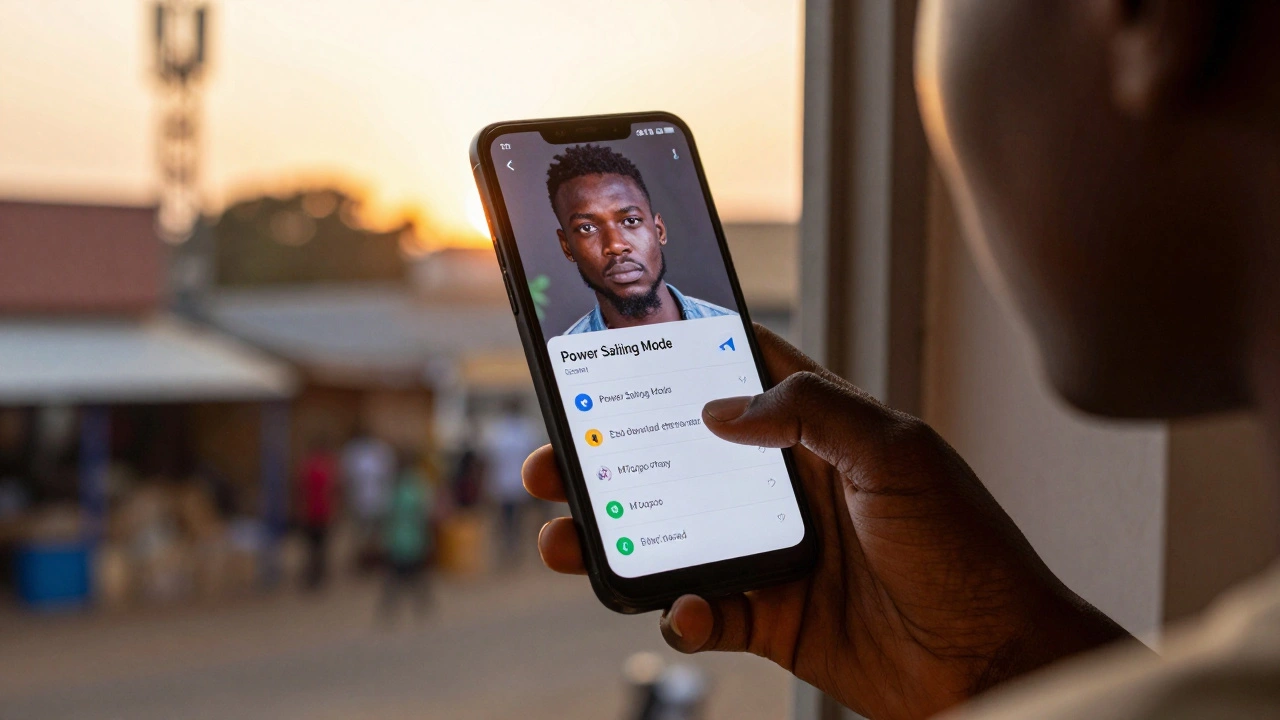
What Other Apps Don’t Do
WhatsApp has a “Data Saver” mode. It only stops media downloads. That’s it. No animation controls. No cache adjustments. No proxy support. Signal? Nothing. It runs the same on a $200 phone as it does on a $1,000 one. That means it’s unusable on many budget devices. PCMag tested message rendering speed on 2GB RAM phones. Telegram with Power Saving Mode was 3.2x faster than Signal. WhatsApp? It crashed 32% more often than Telegram on Android 8.0 devices, according to GSMA Intelligence. Telegram’s advantage isn’t just features. It’s philosophy. It was built for people who can’t afford new phones. That’s why it works where others fail.Future Updates: Automatic Optimization Is Coming
The November 2024 update introduced “Adaptive Power Saving.” If your phone hits 42°C or uses over 85% RAM, Telegram automatically turns on optimization. No manual setup needed. And according to Telegram’s Q1 2025 roadmap, they’re working on “per-device profile optimization.” That means the app will detect your phone model-like a Nokia 2.4 or Infinix Smart 6-and apply the exact settings that work best for it. No more guessing. No more forums. This isn’t just an update. It’s a shift. Telegram is moving from “you fix it” to “we fix it for you.”Final Checklist: Your 5-Minute Optimization Routine
Follow this every time you install Telegram on a low-end Android device:- Turn on Power Saving Mode - Settings > Power Saving > Enable all five options.
- Set cache to 5GB - Settings > Data and Storage > Storage Usage > Keep Media > 5GB.
- Restrict auto-downloads - Only photos on mobile data. No videos unless on Wi-Fi.
- Disable battery optimization - Settings > Battery > App Battery Management > Telegram > Unrestricted.
- Set up MTProto proxy - Settings > Data and Storage > Connection Type > Use Proxy > MTProto > Use server from speedtest.telegram.org.
Does Telegram work on Android 5.0?
Yes. Telegram officially supports Android 5.0 and up. But for smooth performance on low-end devices, you need to enable Power Saving Mode and set the cache to 4-6GB. Without these tweaks, even Android 5.0 can feel sluggish.
Why does Telegram crash on my 1GB RAM phone?
Telegram can run on 1GB RAM, but it needs help. Disable all animations in Power Saving Mode, set cache to 4GB, and turn off battery optimization. Also, avoid using bots or large channels. Stick to basic chats and media. If it still crashes, clear the cache completely and restart the app.
Will disabling animations make Telegram look bad?
It looks more like a basic messaging app-but that’s the point. On a slow phone, smooth animations cause lag and freezes. Turning them off makes the app feel faster and more responsive. Most users don’t miss them after a few days. What they do miss is the app crashing every time they open it.
Can I use Telegram on a phone with 512MB RAM?
Technically, Telegram’s minimum is 1GB RAM. Phones with 512MB are too old and underpowered. Even with all optimizations, the app will likely crash or not install. Consider upgrading to a $50 Android phone with 2GB RAM-those are widely available in emerging markets and will run Telegram smoothly.
Why is my Telegram still slow after following all steps?
Check if your phone has a corrupted cache. Go to Settings > Apps > Telegram > Storage > Clear Cache. Then restart the app. Also, make sure you’re not using too many large channels or bots. If you’re still having issues, try installing Telegram X (the lightweight version), though it lacks some features. If nothing works, your phone’s hardware may be too outdated for modern apps.