Have you ever opened your messaging app only to find yourself buried under a mountain of unread messages? You’re scrolling past family updates, work pings, and bot notifications just to find that one breaking news alert you were waiting for. It’s frustrating, right? If you subscribe to dozens of Telegram channels for news, politics, tech, or finance, your main chat list probably looks like a chaotic mess. The good news is that Telegram has a built-in feature designed specifically to fix this problem: Chat Folders a tool that allows users to sort chats into separate tabs based on custom criteria. By using folders, you can slice up your feed so that news sits in its own dedicated space, completely separate from your personal conversations.
Why Your Chat List Needs a Makeover
Think about how many sources you follow daily. Maybe you have three political blogs, two tech newsletters, a local city channel, and a global market update group. In a standard flat list, these mix with your mom’s photos and your colleague’s Slack-style DMs. This clutter causes "notification fatigue." You start ignoring alerts because you’re afraid it’s just another irrelevant ping. When you organize news channels public or private groups sharing informational content into their own folder, you regain control. You can mute the noise and focus purely on information when you want to learn, without the distraction of social chatter. It turns your app from a dumping ground into a curated dashboard.
Setting Up Your First News Folder on Mobile
The setup process is quick and works across both Android and iOS devices. Here is exactly how to do it:
- Open Settings: On Android, tap the three horizontal lines (menu) in the top left corner, then select Settings. On iPhone, go to the Settings tab at the bottom right.
- Find Folders: Look for the option labeled Chat Folders (or just Folders on some versions). Tap it.
- Create New Folder: Hit the button that says Create Folder or Add Folder.
- Name It: Give your folder a clear name. "News" works, but adding an emoji makes it pop. Try "📰 News" or "🌍 World Updates." Visual cues help your brain switch contexts faster.
- Select Chats: This is the critical step. You don’t need to add every single channel manually. Instead, look for the filter options. Select Channels if you mostly follow broadcast-style news outlets. If you also participate in discussion groups about current events, select Groups as well.
- Save: Tap Save or Done. Boom. A new tab appears at the very top of your screen.
Now, when you open Telegram, you’ll see two tabs: "All" and your new "News" folder. Switching between them takes one tap.
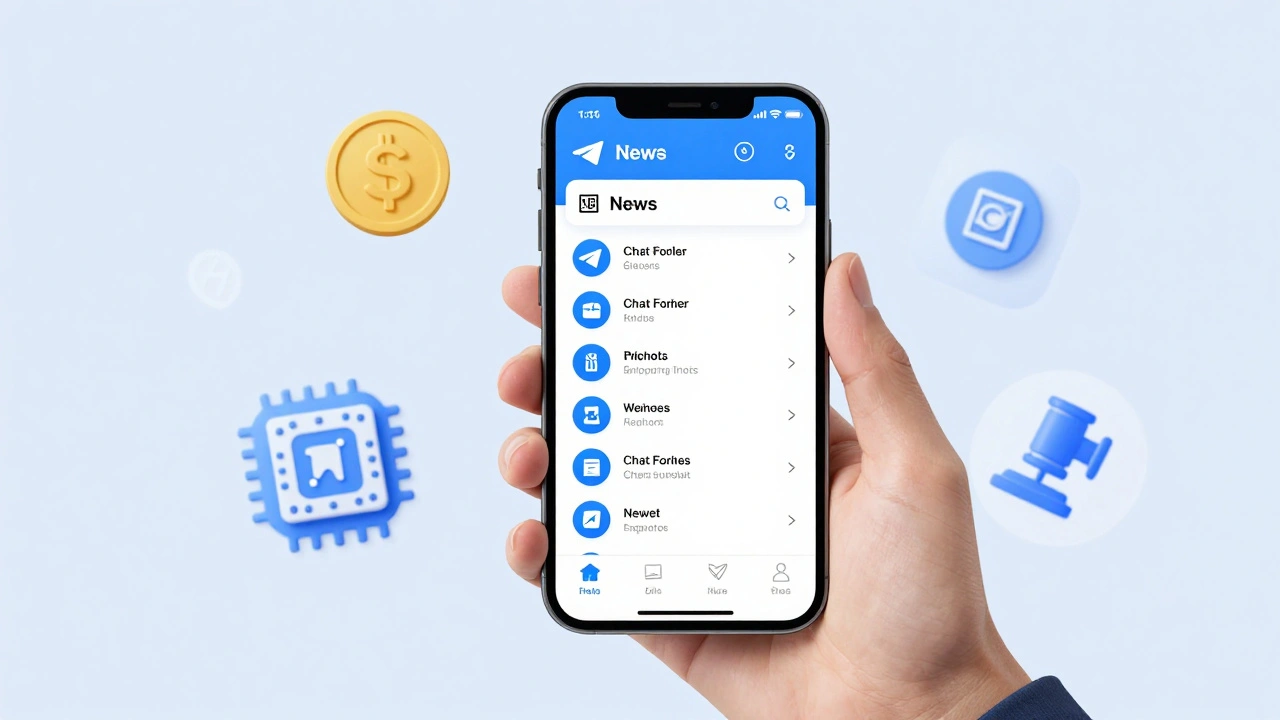
Mastering Filters: Include vs. Exclude
Here is where most people get stuck. They try to manually add 50 channels one by one. That’s tedious and error-prone. Instead, use the logic of inclusion and exclusion. Let’s say you want a folder for all channels, but you hate spammy crypto bots that pretend to be news. Here is how you handle it:
- Inclusion Rule: Set the folder to include all Channels.
- Exclusion Rule: Scroll down to the "Exclude Chats" section. Manually add those annoying crypto bots here.
This means your folder automatically captures any new news channel you join in the future, while keeping the junk out. You can also exclude specific friends who post too much non-news content if they are part of broadcast-style updates. For example, if you have a folder for "Work," you might include all Groups but exclude your "Weekend Plans" group so it doesn’t clutter your professional view.
Organizing by Subtopic: Beyond Just "News"
"News" is broad. To truly declutter, break it down further. Consider creating multiple specialized folders:
| Folder Name | Best For | Suggested Filters |
|---|---|---|
| 🔴 Breaking | High-priority, real-time alerts | Specific high-trust channels only |
| 💰 Markets | Finance, crypto, stock updates | Channels + Groups containing keywords like "finance" |
| 💻 Tech | Gadgets, software, AI news | All Channels related to technology |
| 🏠 Local | City-specific events and weather | Local community groups and city channels |
By splitting topics, you reduce cognitive load. When you want to check the stock market, you open the "Markets" folder. You aren’t distracted by political headlines or tech reviews. This segmentation mimics having different browser tabs open for different tasks. It keeps your mind focused on the job at hand.
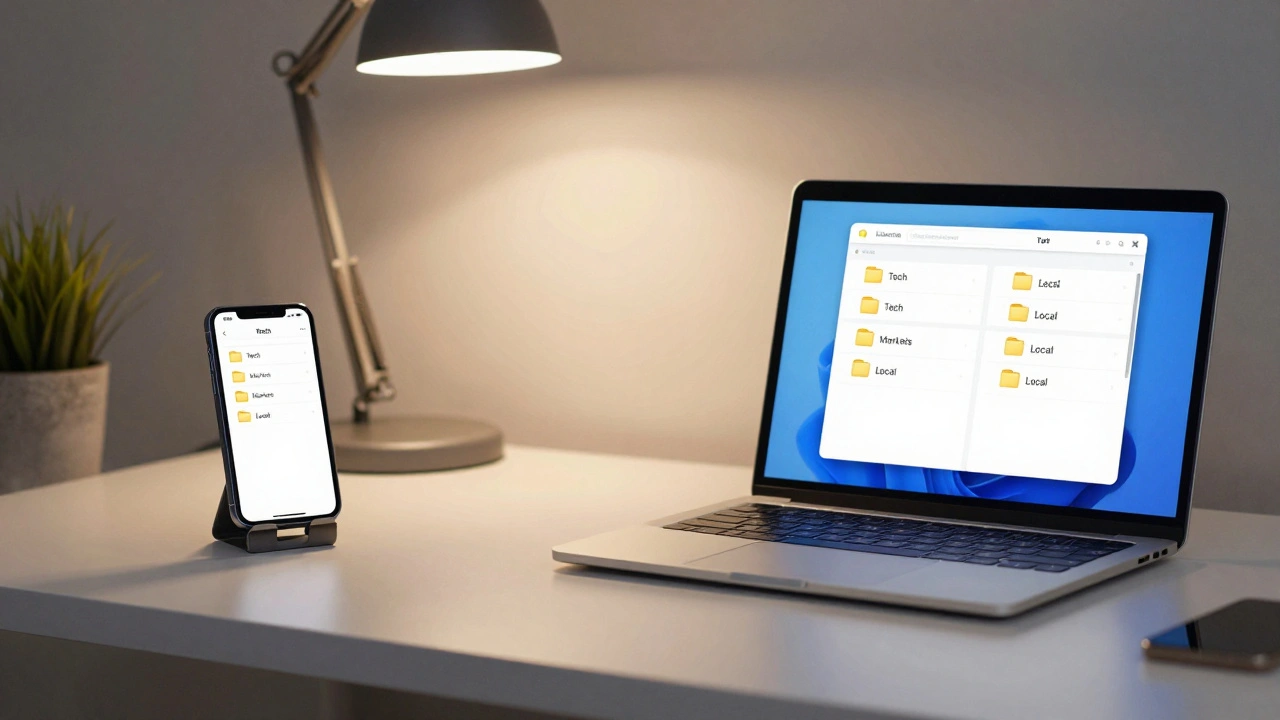
Syncing Across Devices
You don’t have to set this up twice. Telegram syncs your folder configurations user-defined organizational rules stored on the cloud seamlessly. If you create a "Tech News" folder on your phone, it will appear instantly on your Telegram Desktop the official desktop application for Windows, macOS, and Linux app. This is huge for productivity. You can browse news on your phone during your commute, then switch to your computer at home to read the full articles in the same organized structure. No re-sorting required. Just log in, and your workspace follows you.
Pro Tips for Power Users
To get the most out of this feature, keep these tricks in mind:
- Reorder Tabs: You can drag and drop folder tabs to change their order. Put your most-used news folder first so it’s always one tap away.
- Mute Within Folders: Even inside a news folder, some channels might be too noisy. Mute individual channels within the folder to keep the notification badge clean.
- Use Unread Counts: Telegram shows unread counts per folder. This helps you gauge how much "catching up" you need to do before diving in. If the "Politics" folder shows 100+ unread, you know it’s a busy day.
Remember, the goal isn’t just to hide messages-it’s to make information retrieval faster. A well-organized Telegram client saves you minutes every day, which adds up over a year. Start with one folder today, and watch your digital chaos disappear.
Can I add the same channel to multiple folders?
Yes, absolutely. A single chat or channel can exist in as many folders as you like. For example, a major world event channel could be in both your "Breaking News" folder and your "Politics" folder simultaneously.
Do folders work on Telegram Web?
Yes, Telegram Web supports chat folders. Since folders are synced via your account, any folder created on mobile or desktop will appear in the web version’s sidebar.
Is there a limit to how many folders I can create?
Telegram currently allows users to create up to 10 chat folders. This is usually more than enough for most people to categorize their news, work, and personal chats effectively.
What happens if I join a new channel after setting up my folder?
If your folder uses automatic filters (like "All Channels"), the new channel will automatically appear in that folder. If you manually selected specific chats, you will need to edit the folder settings to add the new channel.
Can I share my folder configuration with others?
No, chat folders are private to your account. There is no way to export or share your folder setup directly with other users. Each person must configure their own folders.