Why Your Large Group Is Drowning in Noise
If you run a Telegram group with more than a few hundred members, you know the pain. The chat moves so fast that important announcements get buried under memes, support questions mix with casual banter, and new users quit because they can’t catch up on three days of scrolling. A single continuous message stream simply cannot handle hundreds of thousands of users discussing multiple subjects at once.
This is where Telegram Topics changes the game. Introduced as part of a major platform update, this feature transforms chaotic group chats into organized, multi-threaded discussion spaces. It acts like a forum inside your chat app, allowing admins to divide conversations by subject matter while keeping everyone in one unified community.
In this guide, we will break down how to structure these multi-threaded news discussions, manage permissions, and use topics to keep your community engaged without the chaos.
Quick Summary / Key Takeaways
- Telegram Topics convert standard groups into "super groups" with separate, threaded conversation streams.
- You can enable Topics via Group Settings > Permissions to organize content by category (e.g., News, Support, General).
- Each topic maintains its own pinned messages, media library, and notification settings for better user control.
- Admins can assign specific moderators to individual topics to distribute workload effectively.
- The feature is designed for large communities; small groups may not benefit from the added complexity.
What Are Telegram Topics?
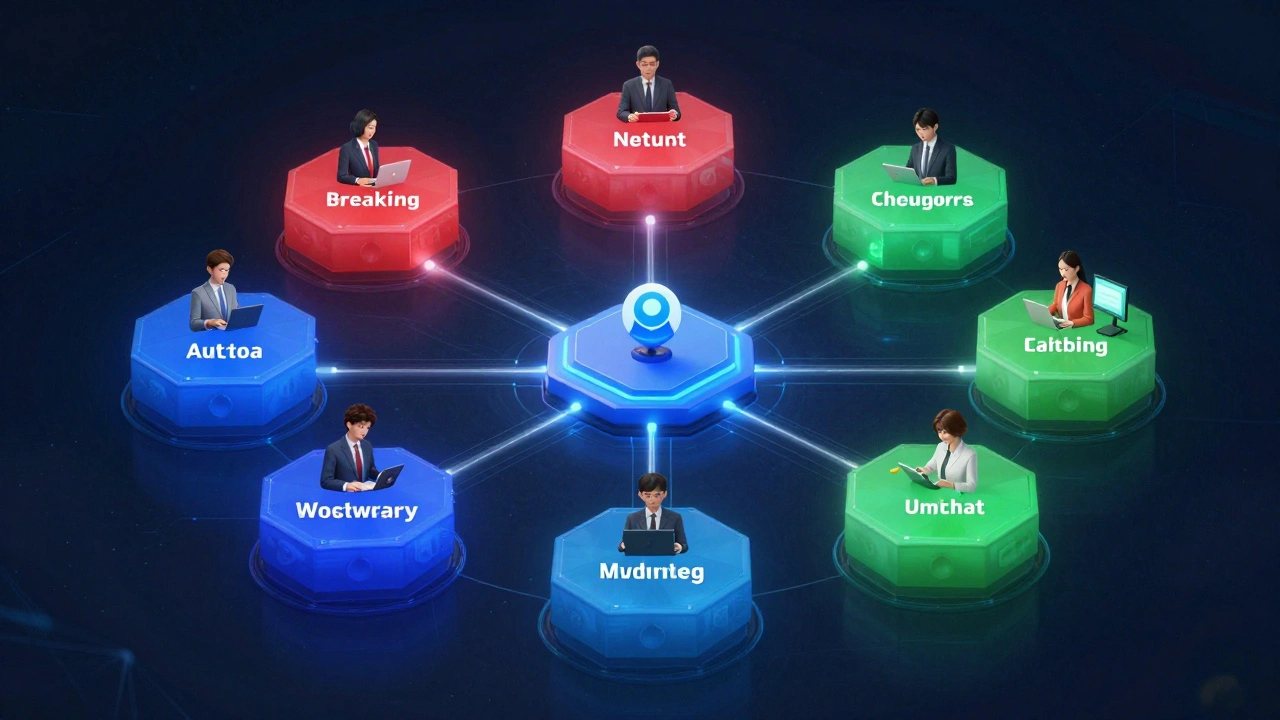
At its core, Telegram Topics is an organizational feature that divides a single group chat into multiple, focused discussion threads. Think of it as turning a noisy town square into a building with different rooms. Each room has a specific purpose-like "Breaking News," "Technical Support," or "Off-Topic Chat"-and people only see the messages relevant to that room unless they choose to look elsewhere.
When you enable Topics, your group automatically becomes what Telegram calls a "super group." This isn't just a name change; it unlocks advanced administrative tools. Each topic functions as an individual chat instance within the parent group infrastructure. This means every topic has its own:
- Message history
- Media library (photos, videos, files shared in that thread)
- Notification preferences
- Pinned messages
This separation prevents information overload. In a traditional large group, if someone posts a question about a bug, ten other people might reply, pushing your urgent announcement off-screen. With Topics, that bug report stays in the "Support" thread, leaving your "Announcements" thread clean and visible.
How to Enable and Configure Telegram Topics
Setting up Topics is straightforward, but it requires admin rights. Here is the step-by-step process to transform your group:
- Open Group Settings: Tap the group name at the top of your screen to access the info panel.
- Navigate to Permissions: Scroll down to the "Permissions" section. Look for the toggle labeled "Topics."
- Enable the Feature: Turn on the switch. Your group will immediately convert to a super group.
- Create Your First Topic: Once enabled, a "Topics" button appears. Click it, then select "Create New Topic."
- Name and Describe: Give the topic a clear name (e.g., "News Updates") and add a description to set expectations for users.
You can create multiple topics to cover different aspects of your community. For a news-focused group, you might create topics like "World News," "Tech Industry," "Local Events," and "Reader Comments." Each of these acts as a dedicated tab, making it easy for users to jump between subjects without losing their place.
Structuring Multi-Threaded News Discussions
For news organizations and community managers, the biggest challenge is keeping factual reporting separate from user commentary. Without structure, a breaking news post gets flooded with opinions, corrections, and unrelated links, making it hard to find the original source.
Here is how to structure your news discussions using Topics:
| Topic Name | Purpose | Moderation Strategy |
|---|---|---|
| Official Announcements | Only admins post here. Critical updates, press releases, and verified facts. | Locked for members; admins only pin and moderate. |
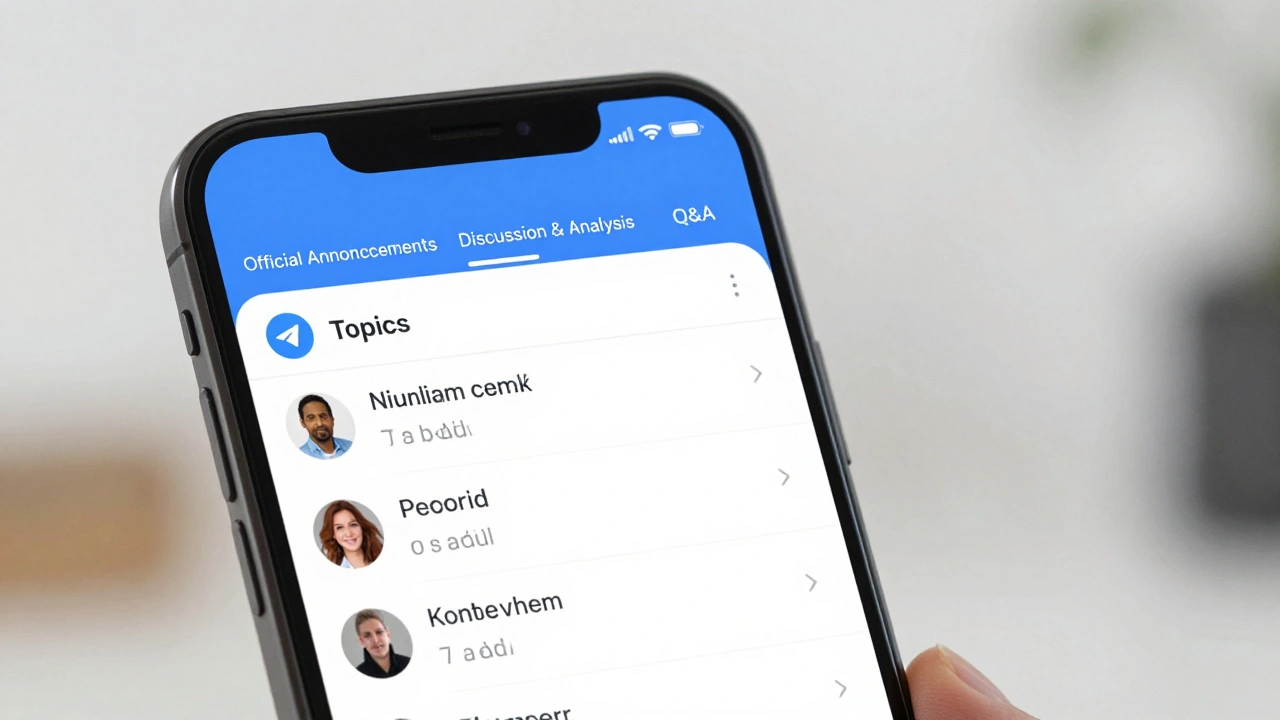
| Discussion & Analysis | Members discuss the news posted in Announcements. Encourages debate and insights. | Active moderation to keep on-topic; delete spam/offensive content. |
| Q&A / Corrections | Users ask questions about stories or point out errors. Admins respond directly. | High visibility; ensure quick responses to maintain trust. |
| General Chat | Casual conversation not related to current news cycles. | Lax moderation; focus on community building. |
This structure ensures that critical information remains accessible. When a user wants to read the latest story, they go to "Official Announcements." When they want to share their opinion, they move to "Discussion." This separation reduces clutter and increases engagement because users can subscribe to notifications for specific topics that interest them.
Administrative Control and Moderation Tips
Managing a large group with Topics gives you granular control over who does what. You don’t have to be the only person policing the chat. Here are key administrative features to leverage:
- Assign Topic-Specific Moderators: You can designate certain admins to manage specific topics. For example, your tech editor can moderate the "Tech Industry" topic, while your community manager handles "General Chat." This distributes the workload and ensures experts oversee relevant discussions.
- Control Who Creates Topics: In the Permissions menu, you can decide if all members can create new topics or if it’s restricted to admins. For most news groups, restricting creation to admins prevents fragmentation and keeps the structure tight.
- Pin Important Messages: Each topic has its own pinned message area. Pin a FAQ in the "Support" topic or a code of conduct in "General Chat." These pins stay visible at the top of the thread, ensuring users always have access to key resources.
- Hide Topics from View: If you need to prepare a sensitive announcement or hold an internal admin meeting, you can hide specific topics from regular members. This allows for private planning within the public group interface.
These controls help maintain order without stifling community interaction. By giving moderators clear boundaries, you reduce burnout and improve response times.
User Experience: Layouts and Navigation
Telegram offers flexibility in how users view these topics. The interface supports two main layouts:
- Tabs Layout: Displays topics as horizontal tabs at the top of the chat. This is ideal for groups with fewer, broader categories (e.g., News, Sports, Politics). It provides quick switching between major sections.
- List Layout: Shows topics as a vertical list. This works better for groups with many specialized sub-topics (e.g., "Stock Market," "Crypto," "Real Estate," "Energy Sector"). Users can scroll through the list to find niche interests.
Users can also choose to view all messages in chronological order across all topics if they prefer a traditional feed. However, most active members prefer staying within a single topic to avoid missing replies. This focused view makes it easier to follow long conversations and reply directly to specific comments, creating true threading.
Benefits for Business and Community Growth
Implementing Topics isn’t just about tidiness; it drives measurable benefits for your community:
Increased Engagement: Users are more likely to participate when they feel their voice is heard in a relevant context. In a mixed chat, shy users often stay silent. In a dedicated topic, they feel safer contributing because the audience is specifically interested in that subject.
Better Information Retrieval: Search functionality works within each topic. If a user searches for "election results," they will only see relevant posts in the "Politics" topic, not unrelated mentions in "General Chat." This saves time and reduces frustration.
Targeted Notifications: Members can mute the entire group but unmute specific topics. This means they won’t be spammed with every message, but they will still receive alerts for high-priority categories like "Breaking News." This reduces churn caused by notification fatigue.
Limitations and Considerations
While powerful, Topics aren’t a magic bullet for every group. Consider these factors before enabling:
- Small Groups May Not Need It: If your group has fewer than 100 active members, a single chat stream is often more personal and cohesive. Topics can feel overly formal and fragmented for small teams.
- Initial Setup Effort: Creating a logical structure takes time. Poorly named topics lead to confusion. Plan your taxonomy carefully before launching.
- Cross-Topic Communication: Users cannot easily reference messages from one topic in another. If a discussion needs to bridge two subjects, admins may need to manually copy-paste or link messages.
Despite these limitations, for large-scale communities, the organizational benefits far outweigh the drawbacks. As of March 2026, the feature is stable across Android, iOS, Desktop, and Web platforms, ensuring consistent performance regardless of device.
Can I use Telegram Topics in small groups?
Technically yes, but it is not recommended. Topics are designed for large groups where message volume is high. In small groups, they can fragment conversation and make the interface feel cluttered. Telegram plans to introduce separate tools tailored for smaller communities in the future.
Do users see all topics by default?
Yes, unless an admin hides a specific topic. All members can see the list of available topics and join any open thread. Admins can restrict visibility for sensitive or internal-only topics.
Can I assign different moderators to different topics?
Yes. Admins can delegate moderation rights for specific topics. This allows you to distribute responsibilities among your team, such as having one person manage support queries and another handle general discussion.
Is there a limit to how many topics I can create?
Telegram does not publish a strict public limit, but practical usability suggests keeping the number manageable. Too many topics can overwhelm users. Aim for 5-15 distinct categories based on your community’s size and interests.
Does enabling Topics affect my group’s previous message history?
No. Existing messages remain in a default "All Messages" or similar general topic. New messages will start appearing in the specific topics you create. The conversion to a super group does not delete historical data.